

Go to Settings > Workspace Billing. Your current plan appears at the top of the page with a Current badge.
Subscription
The subscription page shows your firm's Clasp plan, billing details, and past invoices. This page is only visible to firm administrators.
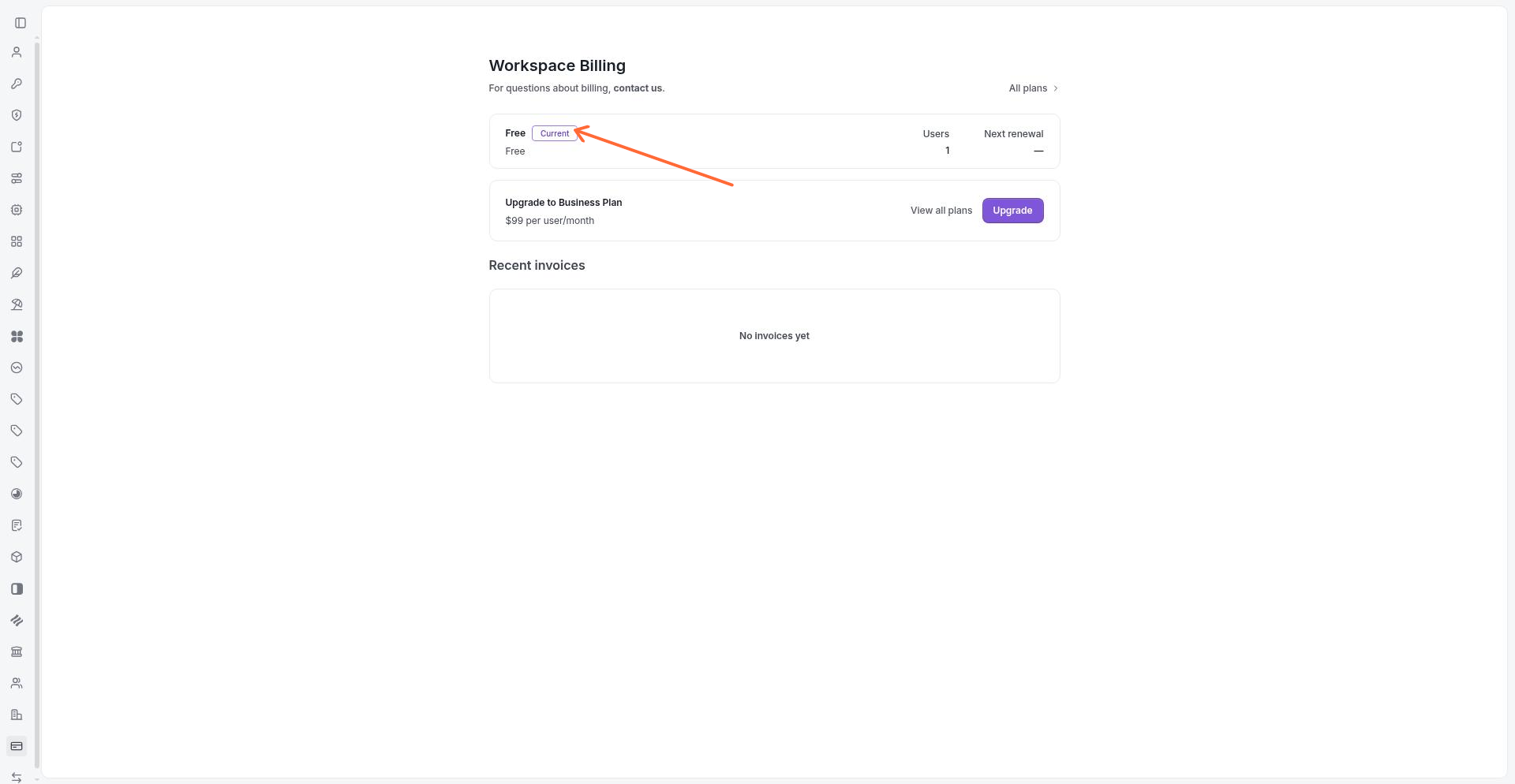
Current Plan
The subscription page displays your firm's current plan with a Current badge. Available plans include Free, 7 day free-trial, Business, Scale, and Enterprise. The page also shows the number of active users on your subscription and any scheduled cancellation date if your plan is set to end.
To view plan options, click All plans. This opens the plan comparison where you can review tier features and pricing.
Changing Your Plan
You can upgrade or downgrade your subscription from the plan comparison screen. Upgrades take effect immediately. Downgrades are scheduled for the end of your current billing period—a pending downgrade and its effective date appear on the subscription page.
[Confirm: Are downgrades applied automatically at period end, or does the user confirm at that time?]
Billing Details
The Billing Details section shows the payment method on file for your subscription. This includes the card brand, last four digits, and expiration date.
To update your payment method, click Edit in the Billing Details section. This opens a secure form where you can enter new card information or select a saved payment method.
Billing Details and payment method options appear for paid plans. Free plans may not display this section until a paid subscription is active.
You can access these settings at Settings > Workspace Billing.
Past Invoices
The Recent invoices section lists your billing history. Each invoice shows the invoice number, date, amount, and status (paid, open, or past due).
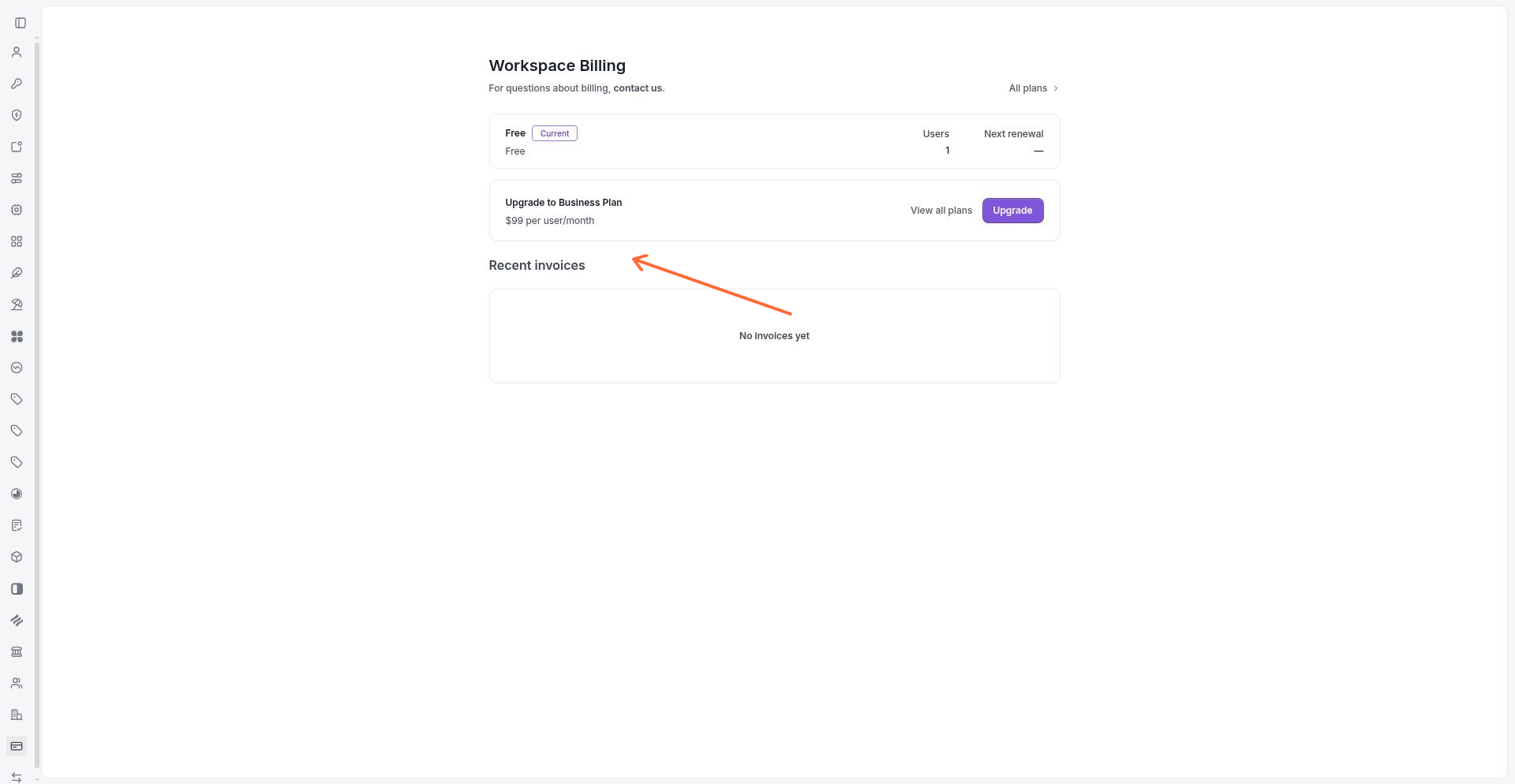
To download an invoice PDF, click View next to the invoice. Invoices are generated after each billing cycle and remain available for your records.
If you have no invoices yet—for example, during a free trial—the section displays a "No invoices yet" message.
Subscription Status
Your subscription can be in one of several states: active, trialing, past due, or canceled. An active subscription provides full access to your plan features. A trialing subscription is temporary and converts to paid at the end of the trial period. A past-due subscription may restrict access if payment fails repeatedly.
Canceled subscriptions show the cancellation date and retain access until the end of the current billing period.
FAQ
Where do I find my subscription plan?
How do I change my plan tier?
From Settings > Workspace Billing, click All plans to view available tiers. Select a new plan to upgrade or schedule a downgrade.
How do I update my payment method?
Go to Settings > Workspace Billing, then click Edit in the Billing Details section. Enter your new payment information and save.
Can I download past invoices?
Yes. Go to Settings > Workspace Billing and find the Recent invoices section. Click View next to any invoice to download the PDF.
Related Articles
Managing Contacts — contact-level billing and payment settings
Was this helpful?