

Yes. Clasp allows multiple Super Admins on a single firm account.
Team Members and Roles
Manage who has access to your firm's Clasp workspace, assign roles, and control what each team member can do.
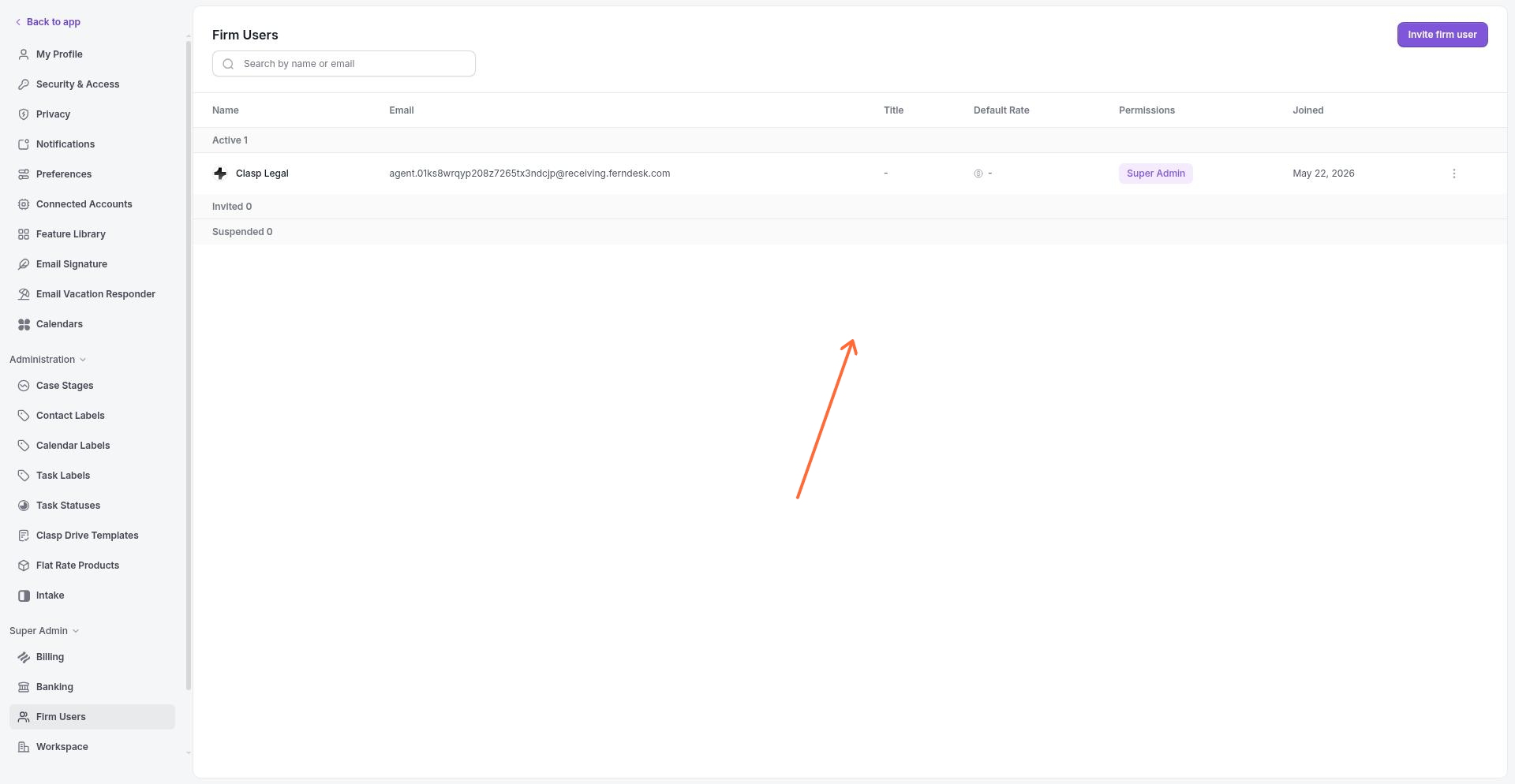
Accessing team management
Team member management is available to admins at Settings > Firm Users. The Firm Users page displays a table of all team members with columns for Name, Email, Title, Default Rate, Permissions, and Joined. Members are grouped by status: Active, Invited, and Suspended.
Inviting team members
Click Invite firm user to open the invite modal. The Invite to your workspace modal lets you add team members one at a time or in bulk.
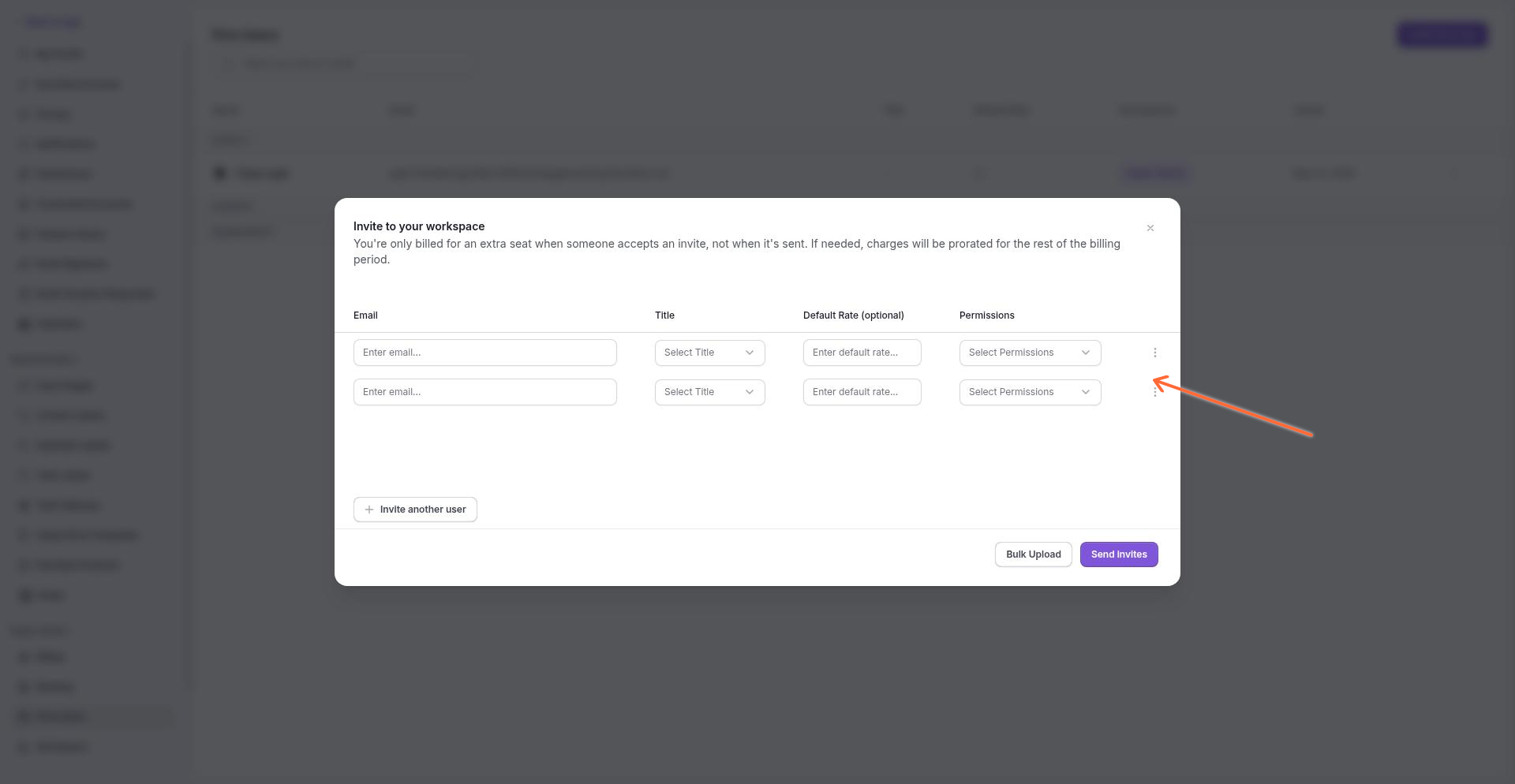
For each invite, enter:
Email — the team member's email address
Title — their role or position at the firm
Default Rate — their hourly billing rates (optional)
Permissions — select Super Admin, Admin, or Firm User
Use Invite another user to add multiple invites before sending. Use Bulk Upload to import team members from a CSV file. Click Send invites to deliver invitations. If inviting new members requires additional seats, Clasp displays billing information about prorated charges.
Roles and permissions
Clasp offers three permission roles:
Super Admin — Full access to all firm settings, billing, user management, and data. Can manage other admins and firm users.
Admin — Access to firm management features including team member invitations and case oversight. [Confirm: what specific settings can Admin access that Firm User cannot?]
Firm User — Standard access to cases, documents, and tasks assigned to them. Cannot access firm-wide settings or invite new members.
[Confirm: exact differences between Admin and Firm User permission levels, including which settings each can access]
Changing a member's role
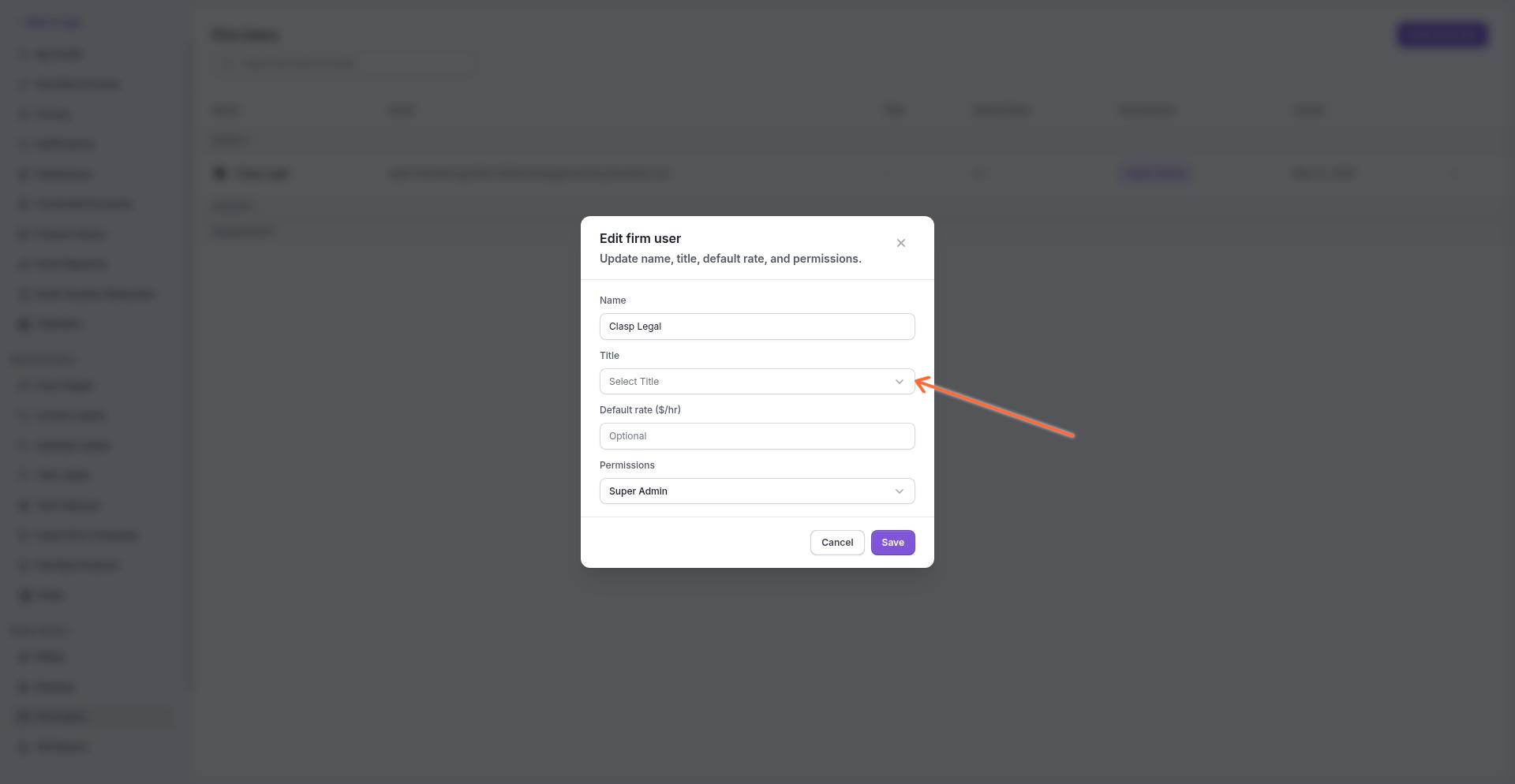
For active or suspended members, click the member's row and select Edit. The Edit firm user modal lets you update the member's name, title, default rate, and permissions. Changes take effect immediately.
Removing or suspending members
To remove someone from your firm, click their row and select Remove. Before removal, Clasp requires you to reassign the member's open work. Select another team member to take over their Cases, Tasks, and Drive items. If no other active members exist, you must invite a new member before continuing.
Suspend keeps the member's data in place but prevents them from signing in. Use suspension for temporary access restrictions without losing historical records. Suspended members can be reactivated at any time.
For pending invites, you can Send invite again, Copy link, or Delete the invitation. Deleting an invite cancels the pending invitation.
FAQ
Can a firm have more than one Super Admin?
What happens to a suspended member's data?
Suspended members retain their data—cases, tasks, and documents remain accessible to other team members. The suspended user cannot sign in until reactivated.
Can I change permissions after sending an invite?
Yes. Edit the pending invite from the Invited section to change the role before the recipient accepts.
Why does removal require reassigning work?
Clasp prevents orphaned data. Cases, tasks, and documents must have an assigned team member responsible for them. You choose who takes over before the member is removed.
Was this helpful?