

Firm-wide settings require admin permissions. If you need to change a setting you can't access, contact your firm administrator. Personal settings like My Profile and Preferences are available to all users.
Settings Overview
Settings manages your Clasp Legal account preferences and your firm's organization-wide configuration. The Settings module is divided into personal account settings—available to every user—and firm-wide settings, which require admin permissions.
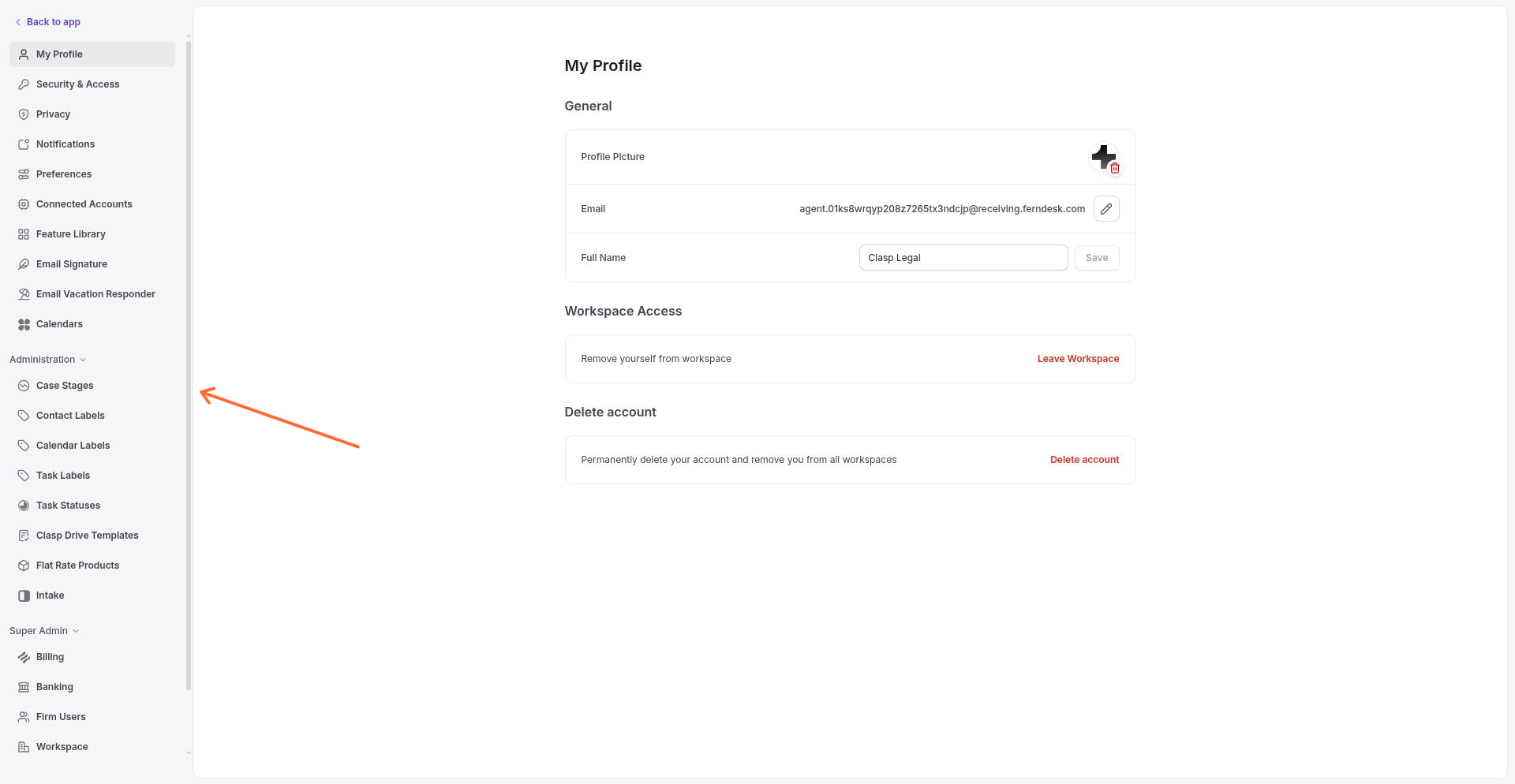
The Settings navigation panel organizes all configuration options. Personal account settings appear at the top, followed by firm-wide settings that only admins can access.
Personal account settings
Personal settings manage your individual user account and preferences. These settings are available to every Clasp Legal user, regardless of permissions.
My Profile
My Profile is the default landing page when you open Settings at /your-org/settings. This is where you manage your account information:
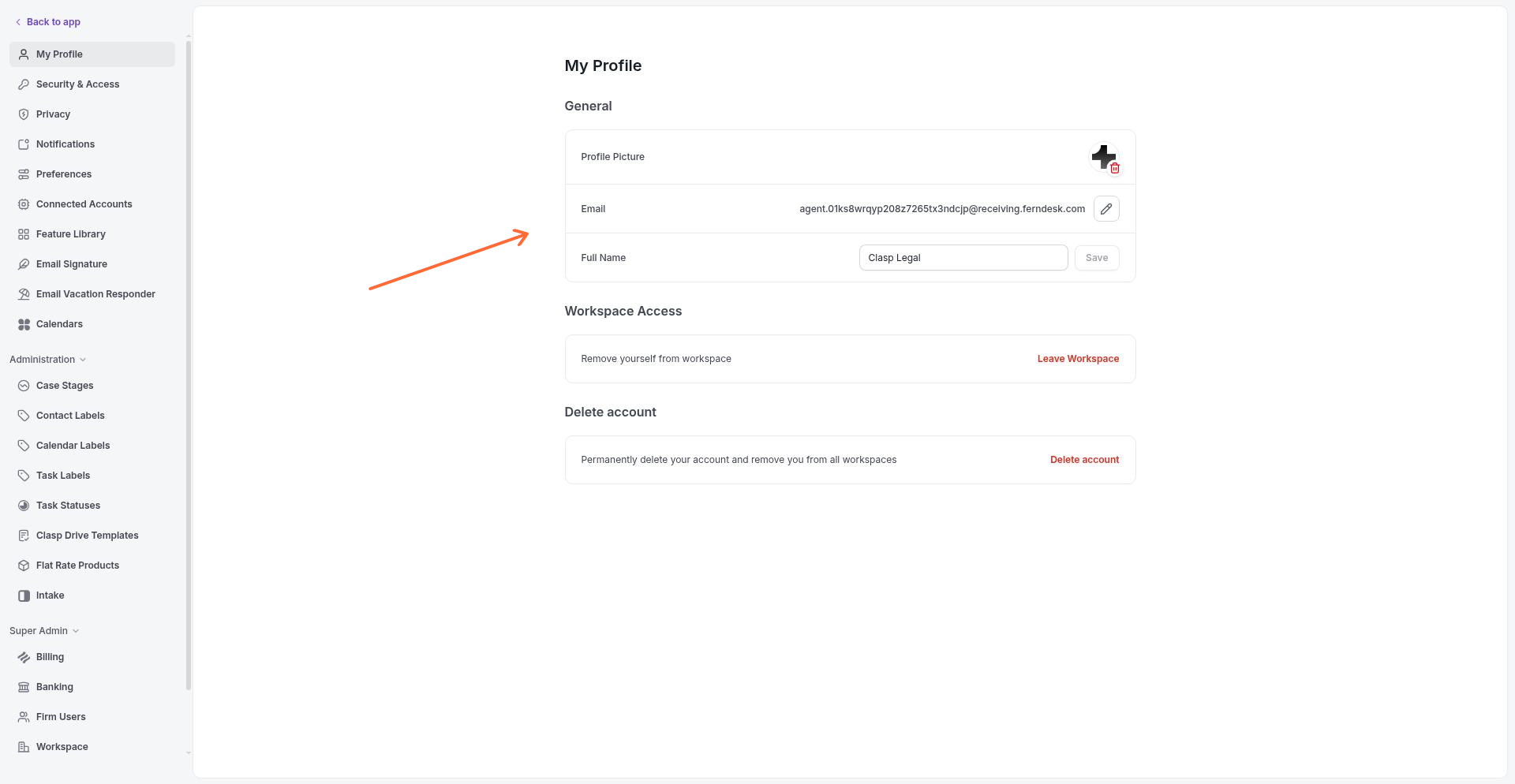
General — Update your full name and profile picture.
Workspace Access — View your membership in the current firm workspace.
Leave Workspace — Remove yourself from the firm workspace if needed.
Preferences
Preferences controls your personal display and interface settings. Changes here affect only your account:
Interface and theme — Choose between Light, Dark, or System display preference.
Preference changes save automatically. You'll see a confirmation when your preference is saved.
Firm-wide settings
Firm-wide settings configure the organization's Clasp Legal workspace. These settings apply to all users in the firm and require admin permissions. If you don't see these options, contact your firm administrator.
Security & Access
Manage security policies and access controls for your firm. This includes user authentication settings, password requirements, and session management.
Notifications
Configure notification preferences and delivery options for the firm. This controls how and when users receive alerts.
Connected Accounts
Connect external accounts to enable integrations with your Clasp Legal workspace. Connected accounts power features across Clasp:
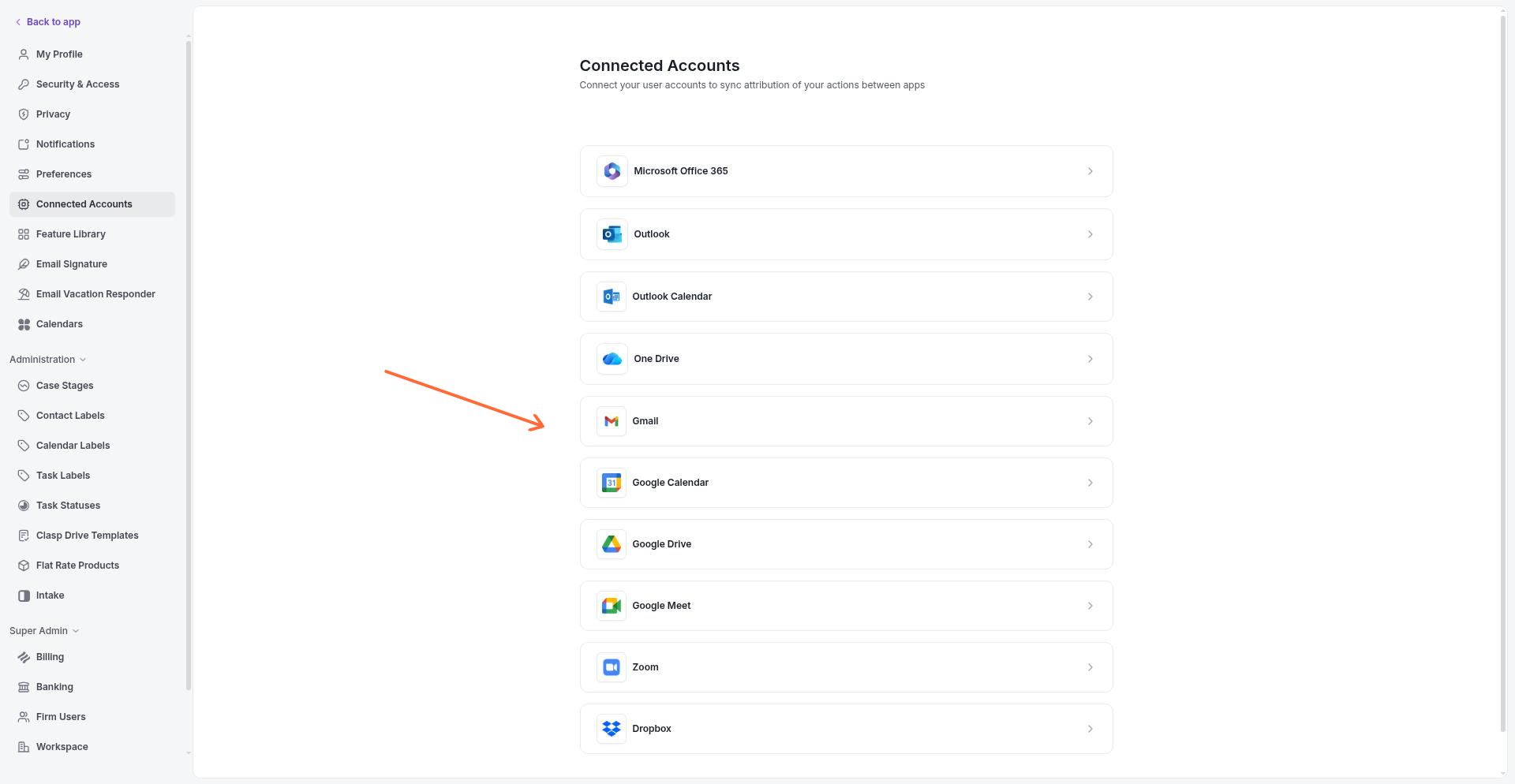
Google Calendar and Outlook Calendar — Sync your calendar events with Clasp's calendar. See Using the Calendar for setup instructions.
Microsoft 365 — Authenticate your Office license for in-browser editing of Word, Excel, and PowerPoint files. See Microsoft 365 licensing for document editing.
Integrations
Manage third-party integrations and external services connected to your Clasp Legal workspace. This includes payment processors, e-filing systems, and other legal technology integrations.
Stages
Configure workflow stages for matters and other work items. Stages define the progression of cases through your firm's process.
Billing
Manage billing settings for your Clasp Legal subscription, including payment methods, billing history, and plan management.
Additional firm settings
Depending on your firm's configuration and your permissions, you may also see:
Workspace — Firm workspace configuration options.
Intake — Client intake form settings and routing.
Forms — Court form templates and management.
Accounting — Financial accounting configuration.
Reports — Reporting preferences and saved reports.
Workspace Billing — Internal billing workspace settings.
Banking — Bank account connections for trust accounting and payments.
Task Labels — Firm-wide labels for organizing and filtering tasks. See Task Labels.
Calendar Labels — Custom labels for categorizing calendar events.
Privacy — Data privacy and compliance settings.
Email Signature — Default email signature configuration for firm communications.
Calendars — Additional calendar configuration options.
FAQ
Why can't I see certain settings options?
Where do I change my notification preferences?
Individual notification preferences are managed in Settings → Preferences. Firm-wide notification configuration is managed by admins in Settings → Notifications.
How do I connect my calendar or Microsoft account?
Go to Settings → Connected Accounts and select Google Calendar, Outlook, or Microsoft to authorize the connection. See Using the Calendar or Microsoft 365 licensing for document editing for detailed instructions.
What's the difference between My Profile and Preferences?
My Profile contains your account information—name, profile picture, and workspace membership. Preferences contains your personal display settings like theme. Both are personal settings that only affect your own account.
Was this helpful?