

Using the Calendar
Clasp Legal's calendar integrates your legal practice scheduling directly with your matters. Connect Google Calendar or Outlook to sync events, link events to specific cases, add attendees, set meeting links, and track deadlines—all within a matter-centric workspace.
Access the calendar
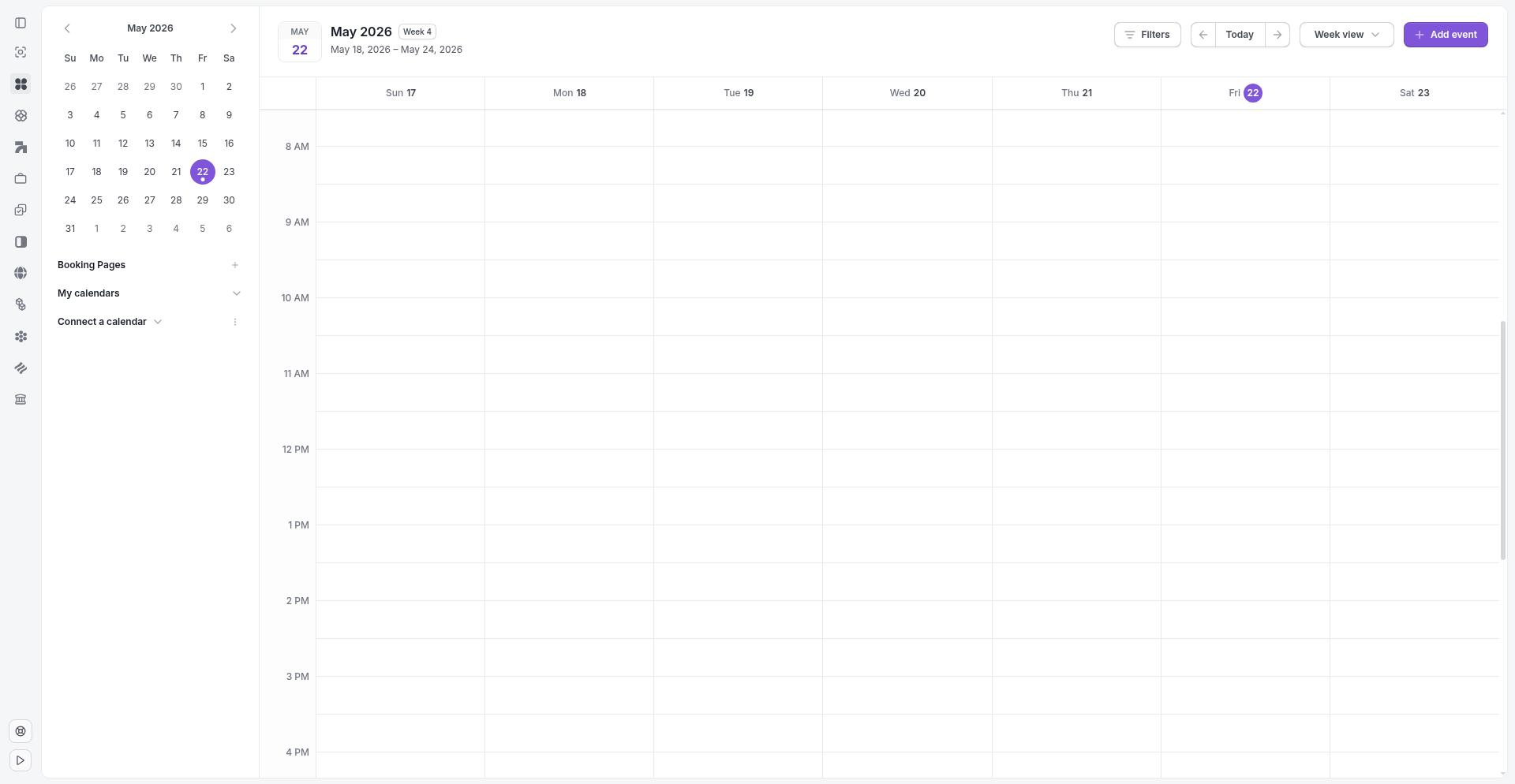
Navigate to Calendar from the main navigation. Your calendar appears at /your-org/calendar. If you haven't connected a calendar account yet, you'll see a prompt to link your calendar.
Connect your calendar account
Clasp Legal syncs with Google Calendar and Outlook Calendar. To set up your first connection:
Go to Calendar in the main navigation.
If no calendar is connected, you'll see the Link your calendar to Clasp Legal screen.
Choose Google Calendar or Outlook Calendar.
Click Connect and follow the authorization flow.
Manage connected accounts
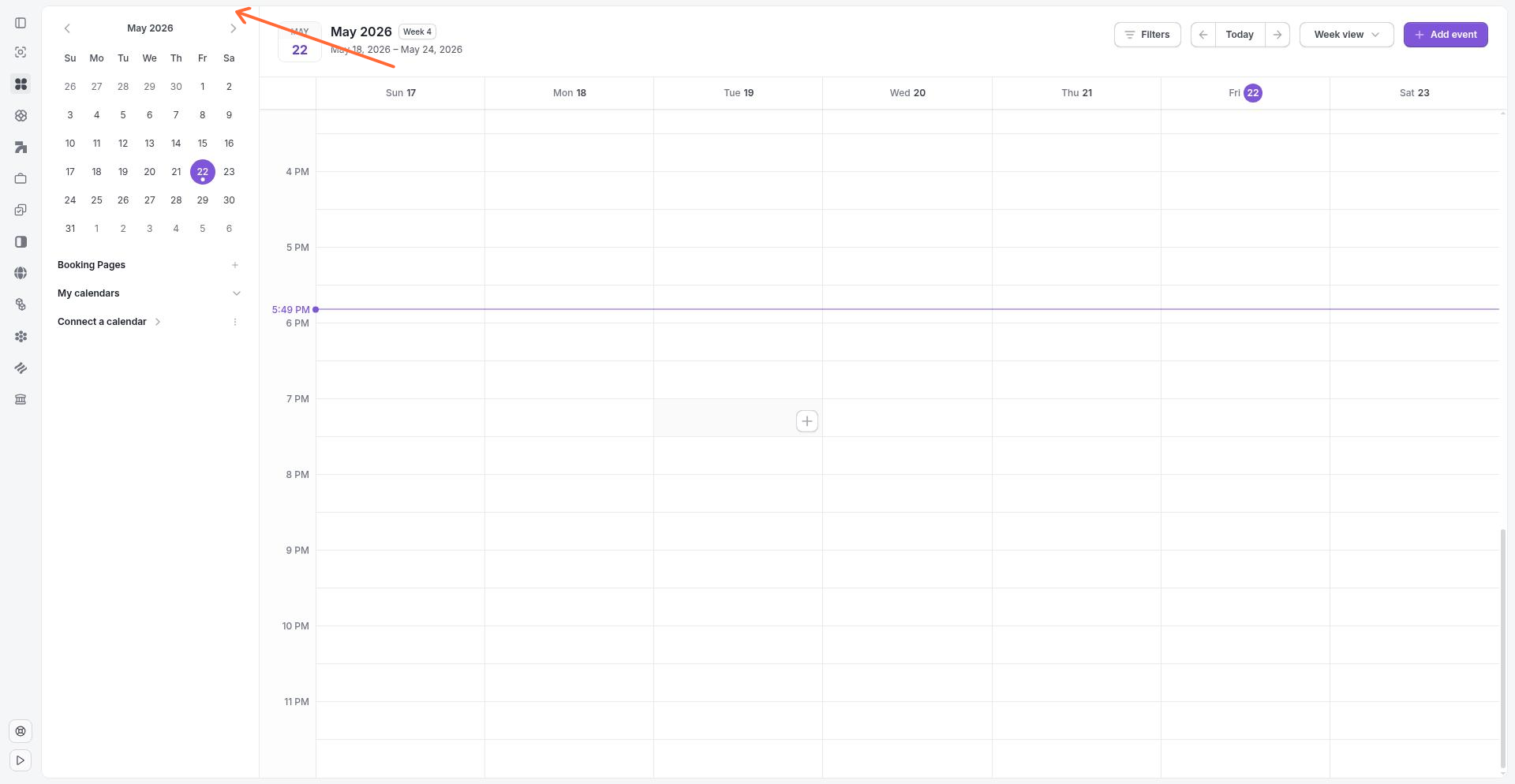
After connecting, you can view and manage your calendar integrations in Settings:
Go to Settings → Connected Accounts.
Select Google Calendar or Outlook to see connection status.
From here, you can disconnect an account or add additional accounts.
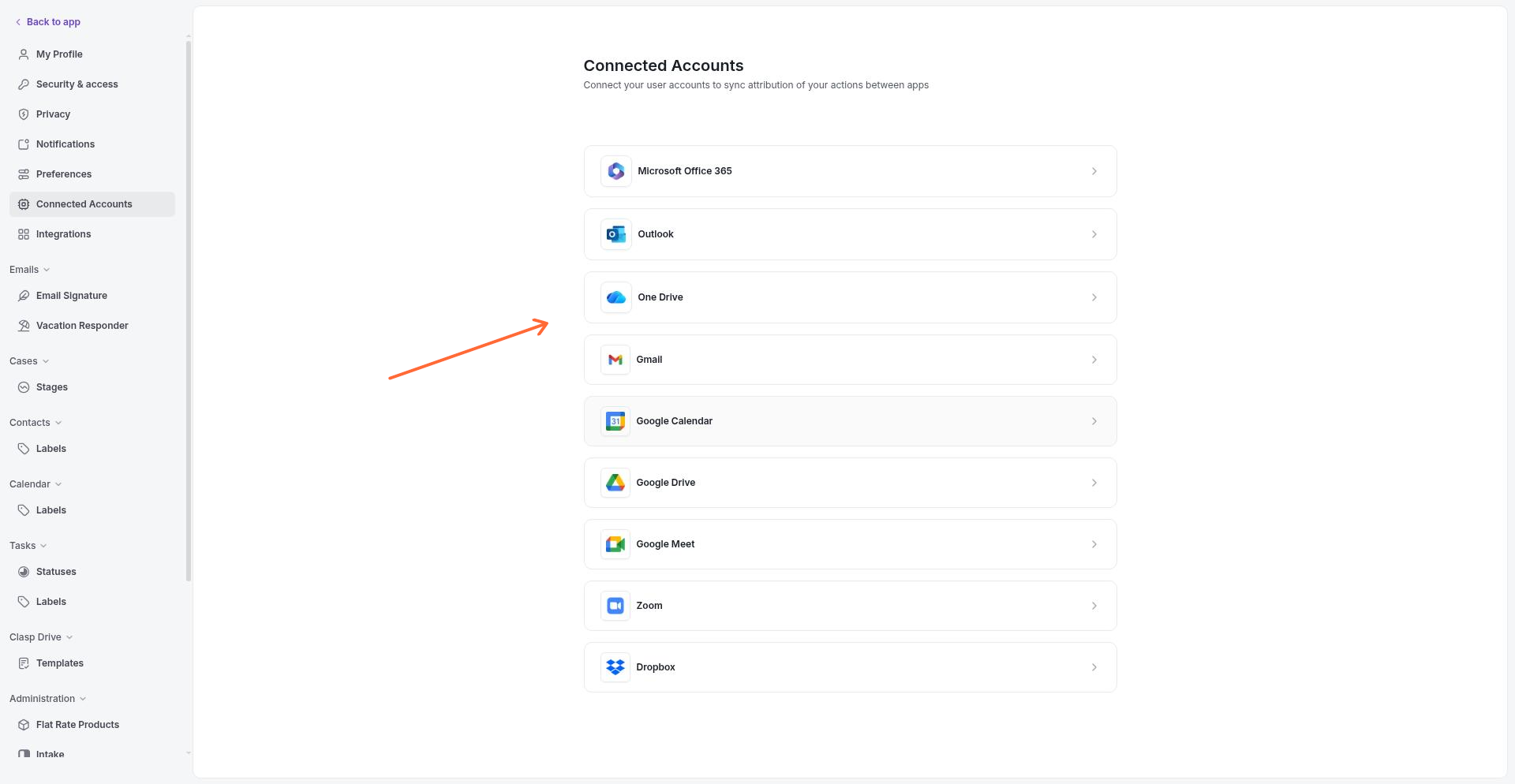
The Google Calendar settings page displays connected accounts, their enabled status, and provides options to disconnect or add new accounts. The Outlook settings page offers the same management options for Microsoft calendar connections.
Create and edit events
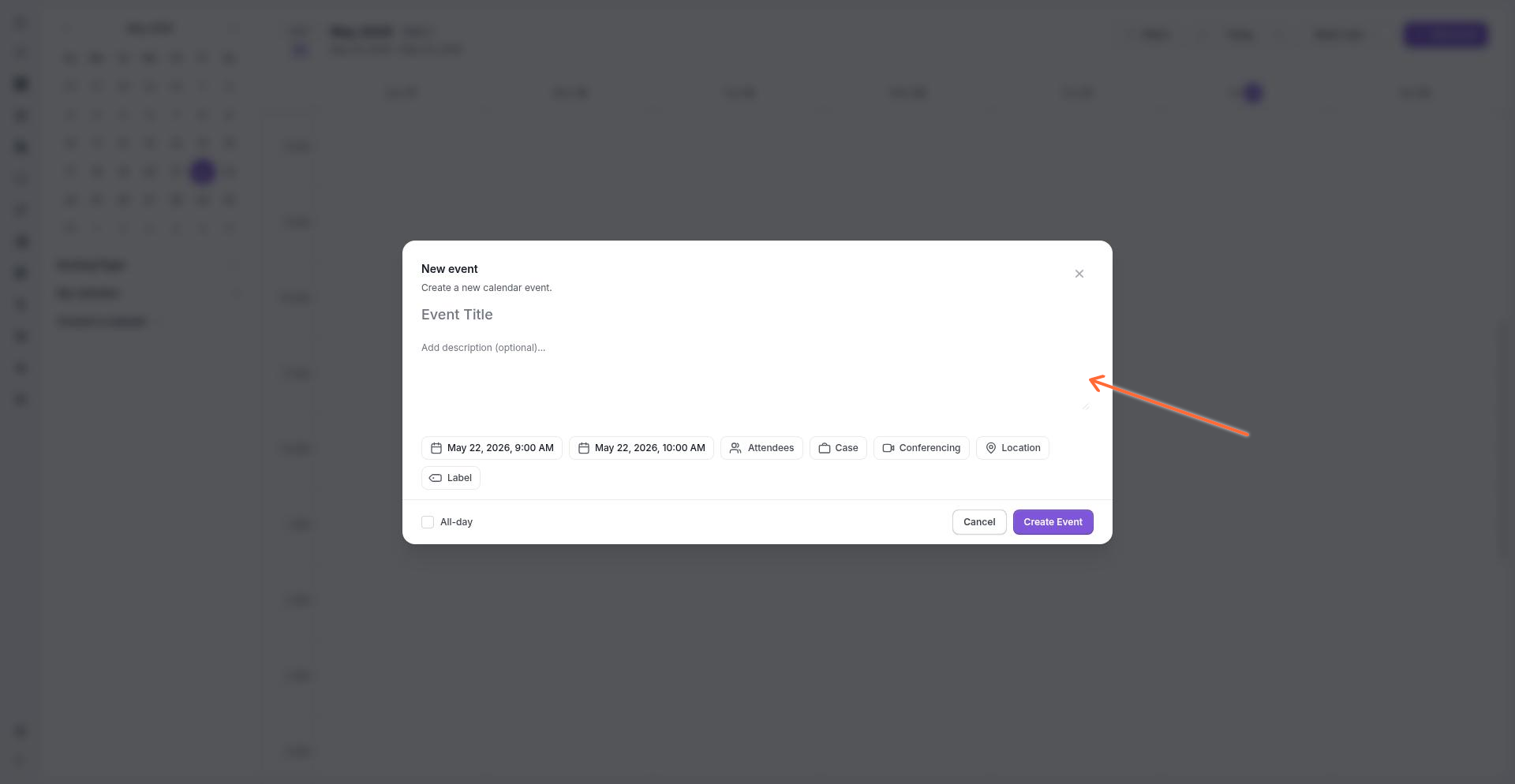
Once a calendar is connected, you can create events from the calendar view. Click any time slot or use the create button to open the event editor.
Event fields
Event Title
Enter a name for your event. This appears on your calendar and in synced external calendars.
Description
Add optional details about the event. Use this for agenda items, preparation notes, or context attendees need.
Start Date and End Date
Set the event date and time. Enable All-day for events without specific start and end times, such as deadlines or court dates.
Attendees
Search for team members to add as attendees. The attendee picker shows results as you type. If no matches are found, you'll see a No members found message. Attendees receive invitations and can respond to the event.
Case
Link the event to a specific matter. This connects the calendar event to the case workspace, making it visible alongside related messages, tasks, and documents for that case.
Meeting Link
Add a video conference link for remote meetings. Clasp Legal supports conferencing options including Google Meet and Zoom. Use the copy button to quickly share the meeting link with attendees.
Location
Enter a physical location for in-person meetings, court appearances, or depositions. This syncs to external calendars along with the event details.
Label / Event Type
Categorize events with labels to visually distinguish meeting types—such as court dates, client calls, depositions, or internal meetings—directly on your calendar.
Event actions
When creating a new event, click Create Event to save. To modify an existing event, open it from the calendar and click Edit event. In edit mode, you can also Delete the event. Changes sync to your connected calendar account.
View event details
Click any event on your calendar to open the details view. The event details modal shows:
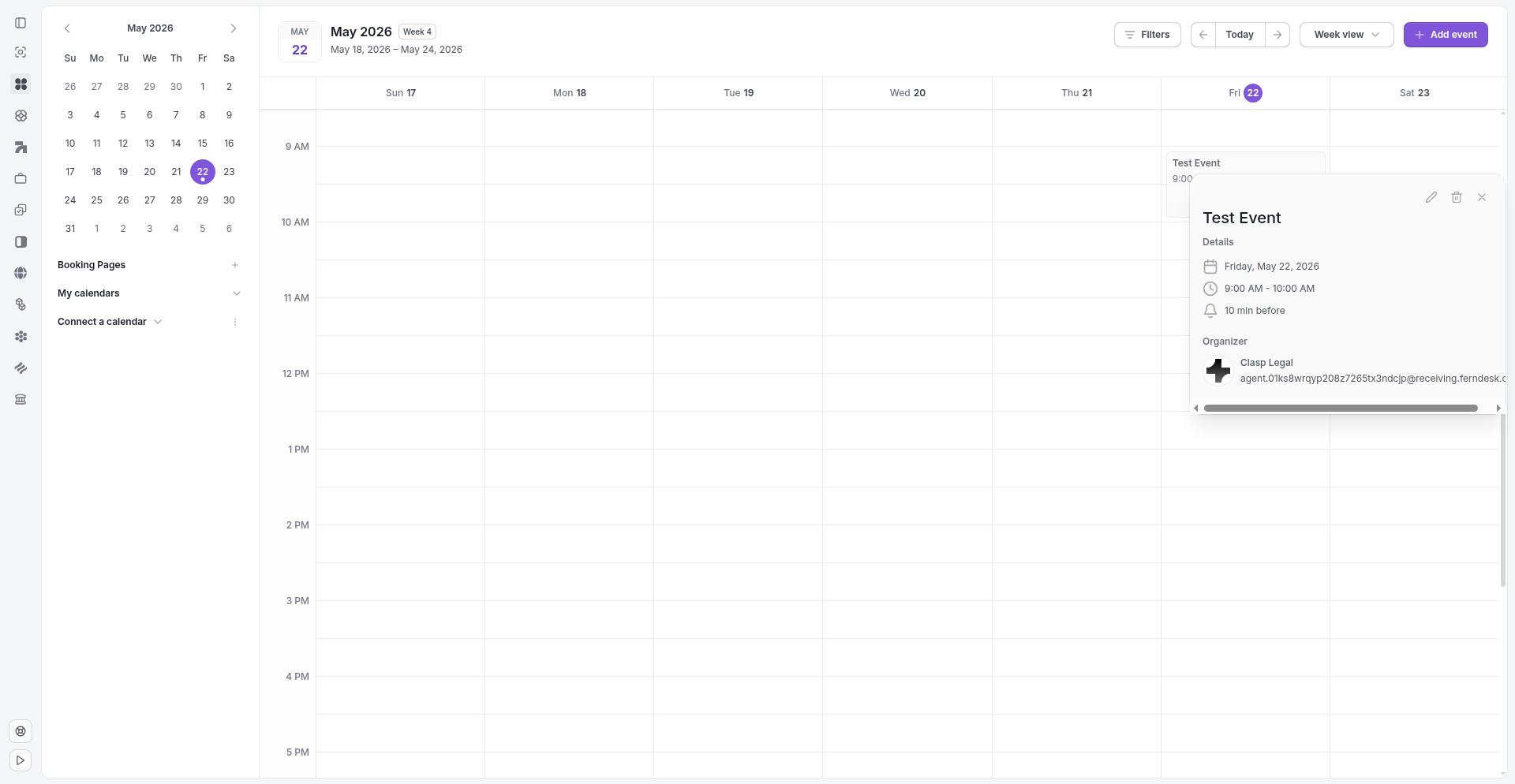
Date and time — when the event occurs
Location — place or address, if set
About this event — the event description
Attendees and guests — who's invited, with response status (accepted, awaiting)
Meeting Link — video conference link, if configured
Calendar in your case workflow
Clasp Legal's calendar is designed for legal practice. By linking events to cases, you keep scheduling close to the work. Deadlines, court dates, depositions, and client meetings appear in context within each matter, reducing the need to switch between your calendar and case files.
Next steps
Connect your calendar account from Settings → Connected Accounts
Link critical dates—filings, hearings, deadlines—to their respective cases
Use labels to categorize events by type for quick visual scanning