

Getting started with Clasp Drive
Clasp Drive is your firm's unified document storage system. When you first open Clasp Drive, you'll see options to import your existing documents—or you can skip this step and start fresh.
Getting started with Clasp Drive
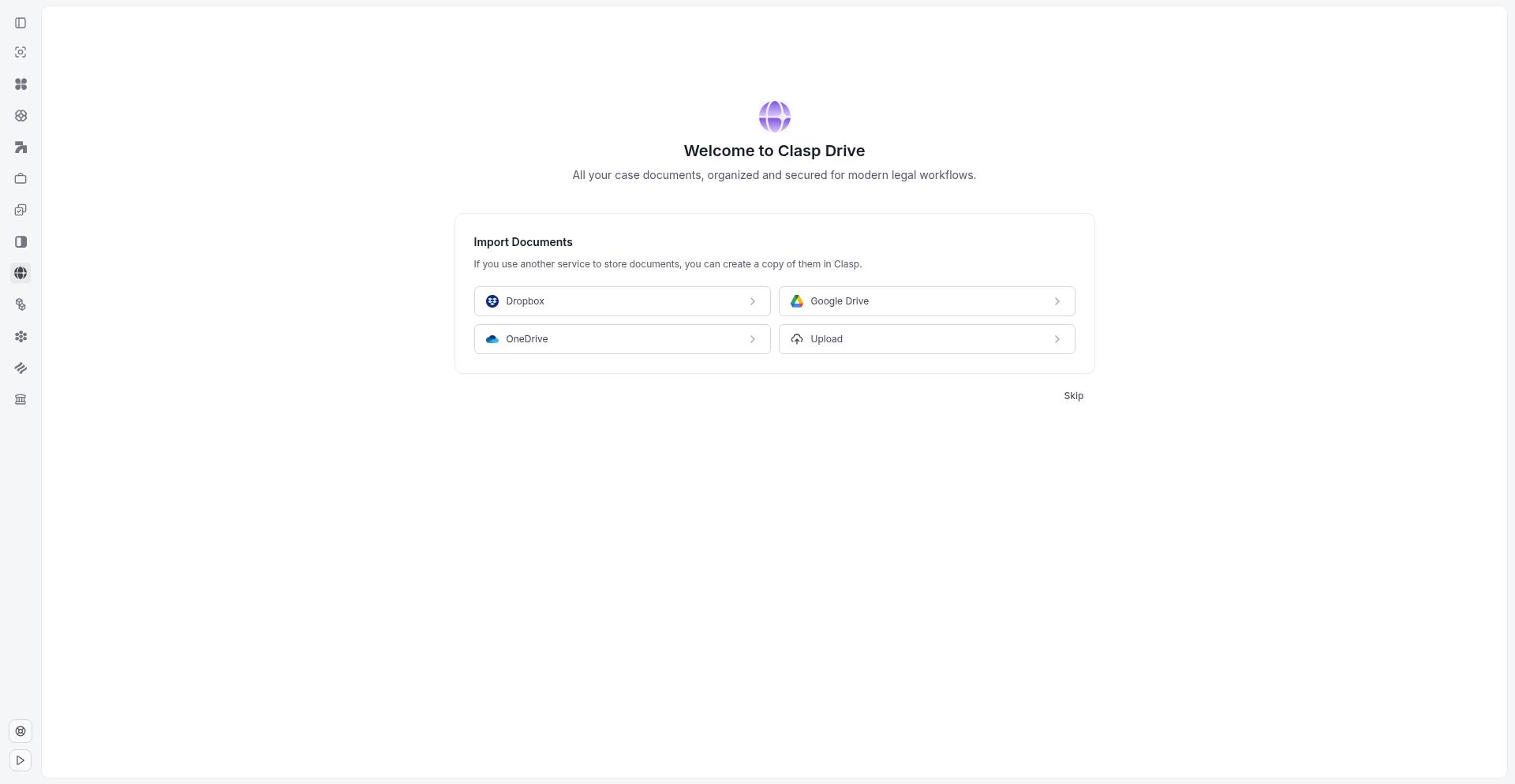
When you first access Clasp Drive, you'll see a welcome screen with options to import documents from your existing storage:
Dropbox — Import files directly from your Dropbox account
Google Drive — Import files from Google Drive
OneDrive — Import files from Microsoft OneDrive
Upload from device — Upload files directly from your computer
If you prefer to start fresh, click Skip at the bottom of the screen. You can always import or upload documents later.
Understanding drive types
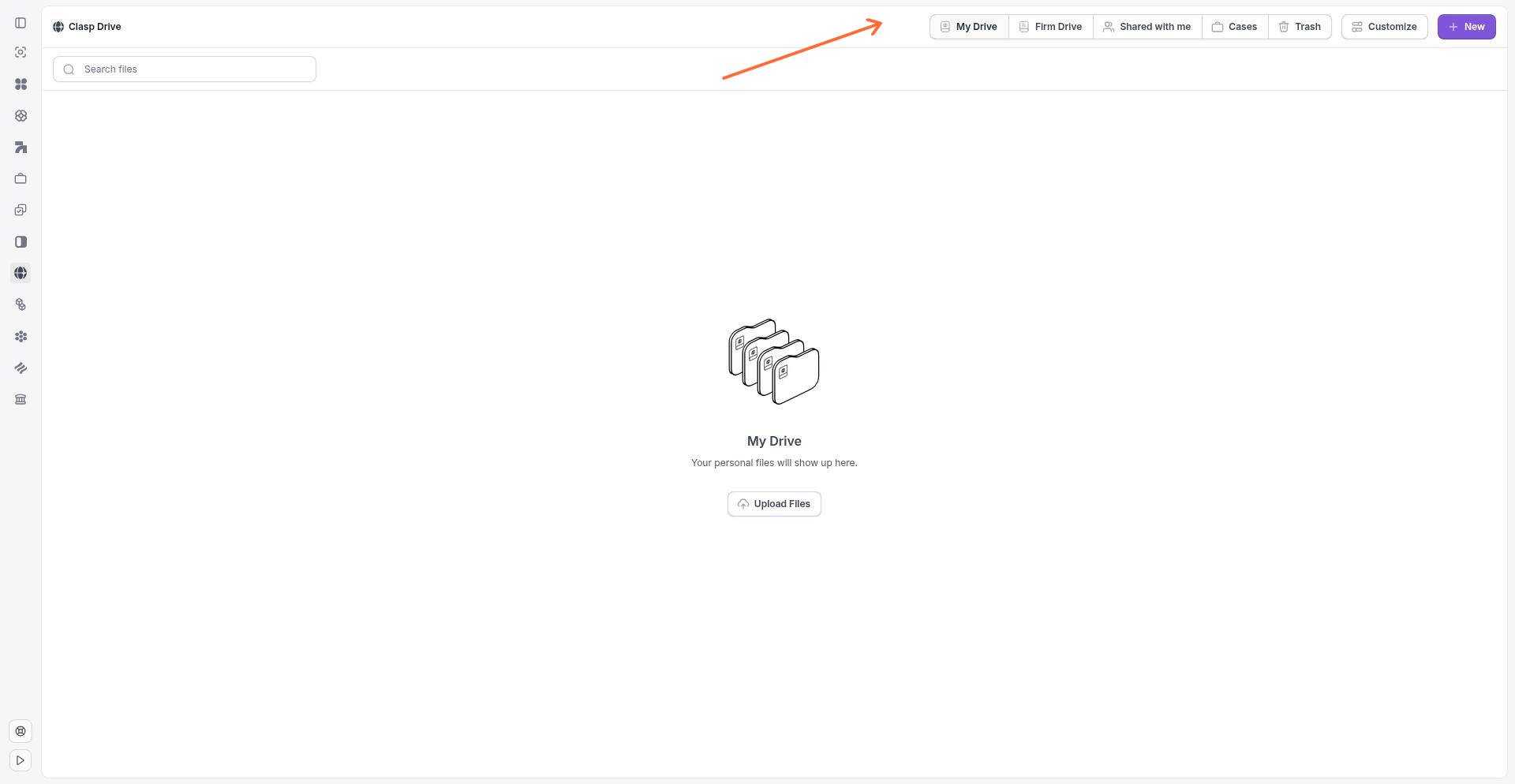
Clasp Drive organizes your documents into different drive types, each with its own purpose and permissions:
My Drive
Your personal file storage. Documents in My Drive are only accessible to you—no other firm members can view or edit these files unless you explicitly share them. Use My Drive for personal templates, drafts, or files you're not ready to share with the firm.
Firm Drive
Firm-wide shared storage. Any user in your firm can access files in Firm Drive. This is the right place for templates, firm-wide policies, reference materials, and documents that the entire team needs to access.
Cases
Case-specific document storage. Documents in Cases are tied to specific legal matters and follow case-level permissions. To access a case's documents, you must be the lead attorney or a subscriber to that case. Important: Anything in Cases is accessible and viewable to clients through their client portal.
Shared with me
Documents that other users have shared directly with you. These files appear here for easy access when someone has shared a document with you specifically.
Trash
Deleted documents are moved to Trash. Files in Trash can be restored or permanently deleted.
Permissions summary
Drive Type | Who Can Access | Client visible? |
|---|---|---|
My Drive | Only you | No |
Firm Drive | All firm members | No |
Cases | Lead attorney, case subscribers | Yes |
Shared with me | Only you (from specific sharer) | No |
Next steps
Create and upload documents with the New button
Edit Microsoft Office documents in your browser