

Create and upload documents with the New button
Everything in Clasp Drive starts with the New button. From the top right of any drive view, click New to create folders, upload files, or create Microsoft Office documents directly in your workspace.
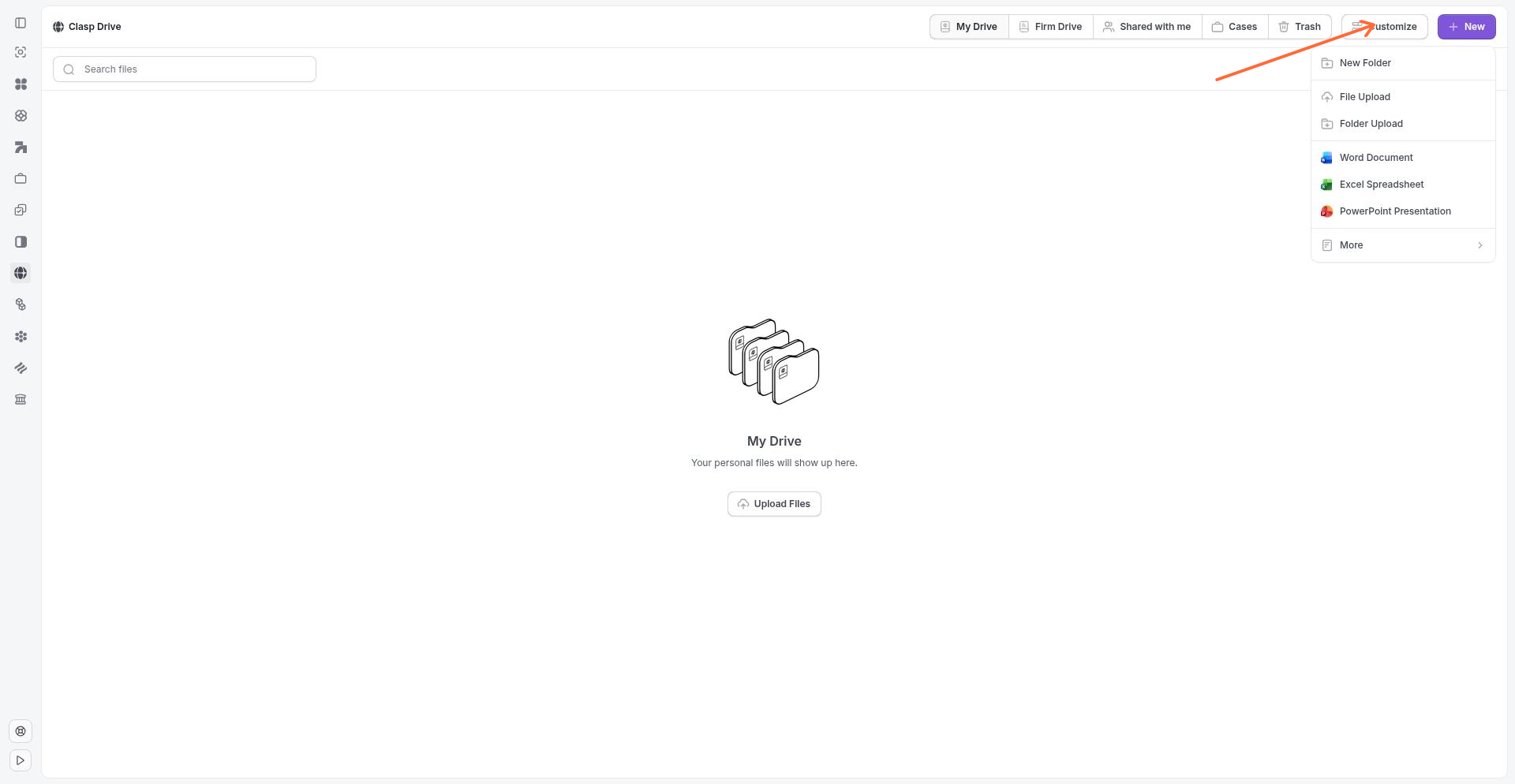
Create folders
Organize your documents by creating folders within any drive:
Click New in the top right.
Select New Folder.
Enter a name for your folder.
Click Create.
Folders can be nested to create a hierarchical structure that matches your filing system. You can move files and folders between drives by dragging them to a new location.
Upload files from your device
Upload documents directly from your computer to any drive:
Click New in the top right.
Select File Upload for individual files, or Folder Upload to upload an entire folder and its contents.
Choose the files or folder from your computer.
Uploads begin automatically. When you upload a file with the same name as an existing document, Clasp will prompt you to either replace the existing file or keep both files.
Create Microsoft Office documents
Create Microsoft Office documents directly in Clasp Drive:
Click New in the top right.
Select Word Document, Excel Spreadsheet, or PowerPoint Presentation.
The document opens in your browser for editing.
New Office documents are created in the current drive and are immediately available for editing. Changes save automatically as you work.
To edit Office documents, you need a Microsoft 365 work or school account with an Office web license. Personal Microsoft accounts can only view documents, not edit them. See Microsoft 365 licensing requirements for details.
Cloud imports (More options)
Click More in the New menu to import documents from connected cloud storage services:
Import from Google Drive
Import from Microsoft OneDrive
Import from Dropbox
Authenticate with your cloud storage account, then select the files you want to import. Clasp copies the documents to your current drive.
Supported file types
Clasp Drive supports a wide range of file types:
Documents — Word (.docx), PDF, text files
Spreadsheets — Excel (.xlsx)
Presentations — PowerPoint (.pptx)
Images — PNG, JPG, GIF, and other image formats
Other — Most common file formats are supported for storage and sharing
Organizing files across drives
You can move files and folders between My Drive, Firm Drive, and Cases by dragging them to a new location in the sidebar. When moving files:
My Drive to Firm Drive — Files become accessible to all firm members
My Drive to Cases — Files become visible to case subscribers and clients
Firm Drive to Cases — Files become visible to case subscribers and clients
Be mindful of permissions when moving files—moving a personal document to Cases makes it visible to clients.
Next steps
View and manage images and PDFs in the document viewer
Share documents with your team and clients