

Yes. When you open the label picker on a task, you can type a new label name and create it on the spot. The new label is added to your firm's label list and becomes available to all tasks.
Labels
Task labels are firm-wide tags you apply to tasks for organization and filtering. Each label has a name and a color, and the same label set is available across all tasks in your workspace.
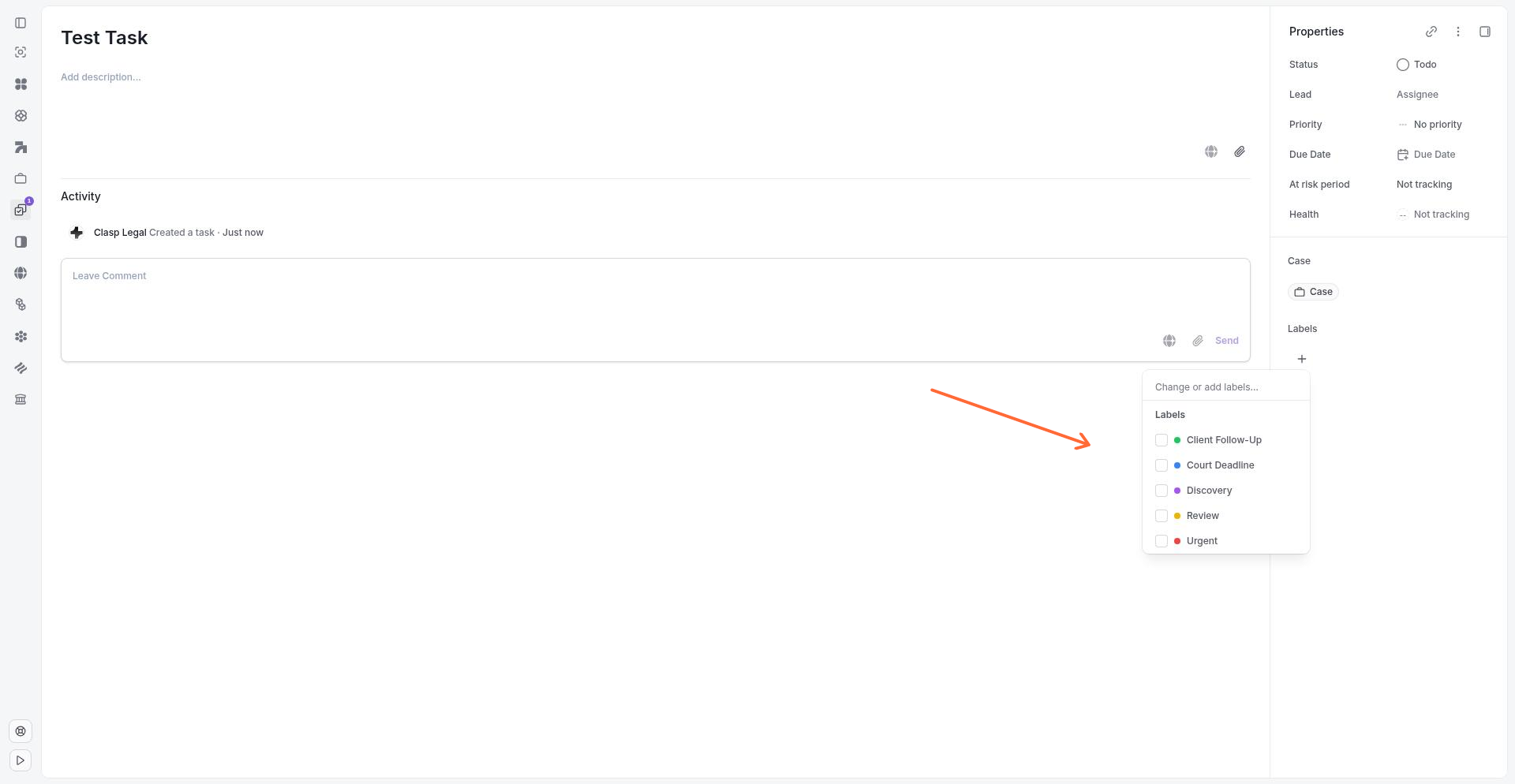
The label picker shows all available firm-wide labels with their colors.
What task labels are
Task labels let you categorize and filter tasks across your firm. Labels are configured at the organization level—an admin defines the available labels, including their names and colors, and they can be reused on any task in the workspace. A single task can have multiple labels applied to it.
Labels appear as colored pills on task cards and in the task detail panel. You can filter task lists by label to see all tasks with a given label, regardless of which matter or user they're assigned to.
Adding labels to a task
Open a task and locate the Labels section in the task detail panel. Click the Add label control or the field that shows Change or add labels... to open the label picker. The picker displays all available firm-wide labels. Select one or more labels to apply them to the task. Labels appear immediately as colored pills next to the task.
If the label you need doesn't exist, you can create a new workspace label directly from the picker by typing a name and selecting the create option.
Filtering tasks by label
In the task list, use the Task labels filter chip to narrow your view. The filter supports several operators:
include — show tasks that have the selected label
do not include — show tasks that don't have the selected label
include all of — show tasks that have every selected label
include any of — show tasks that have at least one of the selected labels
exclude if any of — hide tasks that have any of the selected labels
exclude if all — hide tasks that have all the selected labels
Each label in the filter shows how many tasks currently match. Combine label filters with other task filters to build focused views of your work.
Managing firm-wide labels
Label configuration is managed in Settings > Task Labels. For detailed instructions on creating, editing, and deleting labels, see Task Labels settings.
FAQ
Can I create a label directly from a task?
Who can manage task labels?
Only firm admins can access Settings > Task Labels to create, edit, or delete labels. All team members can apply existing labels to tasks.
What happens if I delete a label?
You can delete a label that is not in use, but deletion will fail if the label is assigned to a task.
Can I use the same label on multiple tasks?
Yes. Labels are designed to be reused across all tasks in your workspace. You can filter by a label to see every task that shares it.
Was this helpful?