

Open My Tasks from the navigation. This view shows tasks assigned to you, filtered from the firm-wide task list.
Overview
Tasks in Clasp are work items you track to completion—action items, deadlines, follow-ups, and to-dos that keep your cases moving forward. Tasks can exist independently or connect to specific cases, and they live in both a firm-wide task list and a personal My Tasks view.
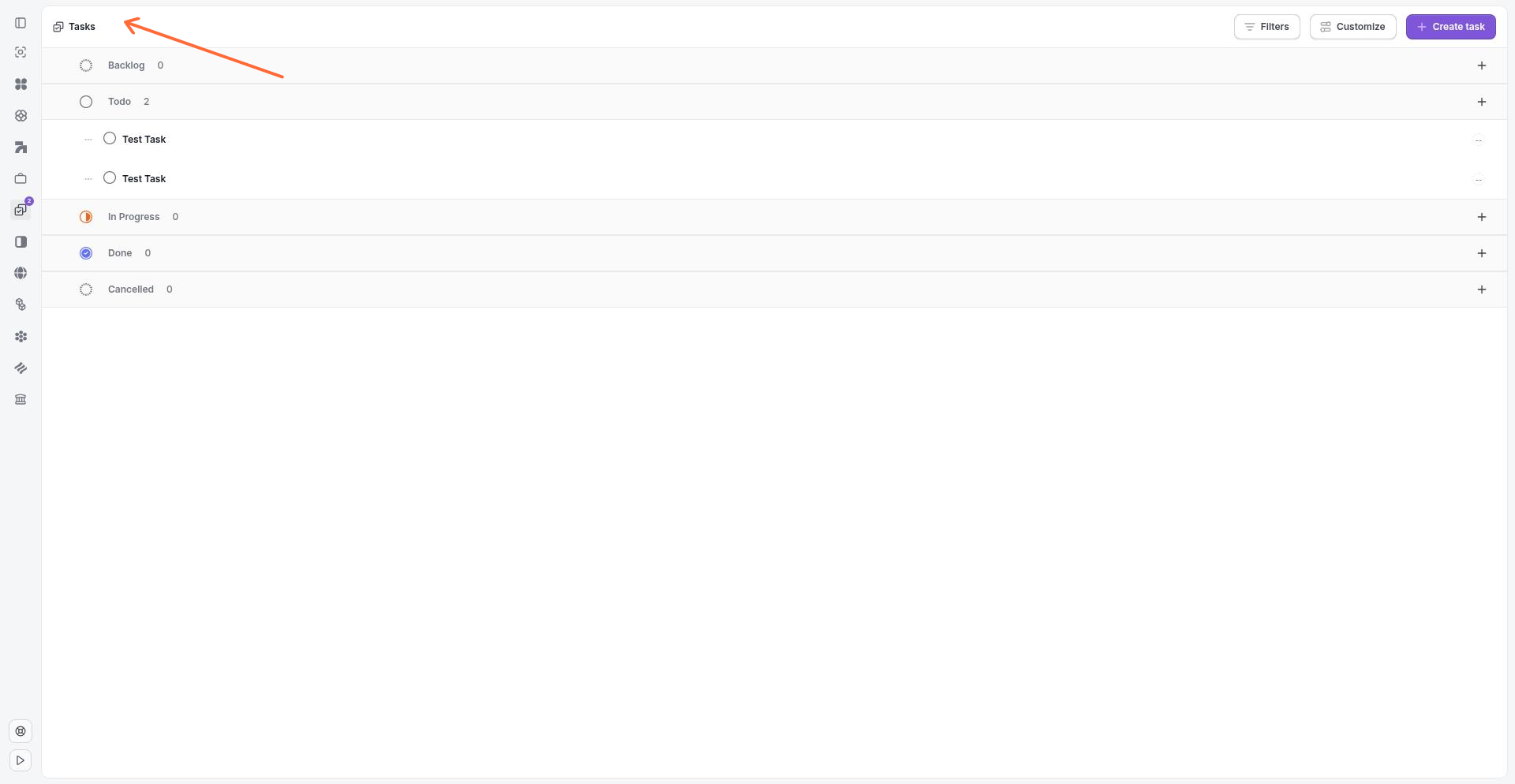
The Tasks board view displays tasks organized by status in kanban columns.
Where tasks live
Clasp provides two task surfaces. Navigate to Tasks from the main navigation to see all tasks across the firm. This view shows every task regardless of assignee, with filters to narrow by case, status, priority, assignee, and due date. Your personal task view, My Tasks, shows only tasks assigned to you. Both views support List and Board layouts, so you can switch between a table format and a kanban-style board.
Tasks connected to a specific case also appear in that case's workspace alongside messages, documents, and deadlines. This matter-centric visibility ensures task work stays in context.
Task properties
Each task carries standard properties for organizing and filtering work:
Status — The task's current state: Backlog, Todo, In Progress, Done, or Cancelled.
Priority — The urgency level, which helps triage competing tasks.
Assignee — The team member responsible for completing the task.
Due Date — The target completion date.
Case — The matter the task relates to, if any.
Label — One or more labels for categorizing and filtering tasks.
Task labels are configured in Settings → Task Labels. Firm admins can create and manage labels that apply across all tasks. Task labels are separate from calendar event labels, which are managed in Settings → Calendar Labels.
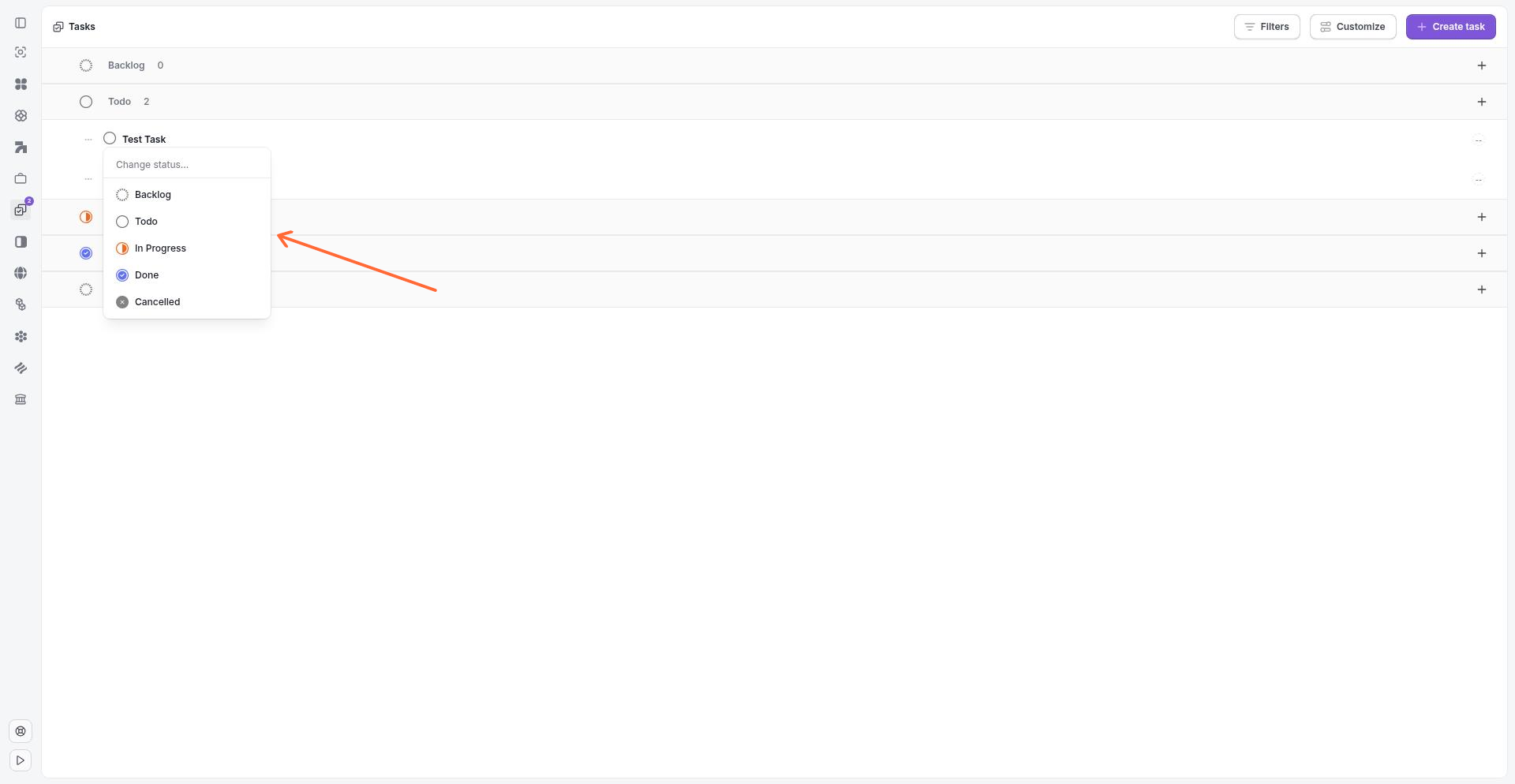
The task detail sidebar opens when you click a task and shows properties you can edit.
Tasks vs. calendar events
Tasks and calendar events serve different purposes. Tasks are work items you track to completion—they may have due dates, but they don't block time on your calendar or require attendee invitations. Calendar events are scheduled appointments with specific start and end times, attendees, locations, and optional meeting links. Use tasks for action items, follow-ups, and to-dos. Use calendar events for meetings, court appearances, depositions, and other scheduled commitments.
Both tasks and calendar events can be linked to cases. When linked, they appear in the case workspace next to related messages and documents. See Using the Calendar for details on scheduled events.
View and filter tasks
The task list supports robust filtering to find the work you need. Apply filters for Status, Priority, Label, Case, Assignee, Due Date, At risk period, and Health. Filters combine, so you can narrow to high-priority tasks for a specific case, or all overdue tasks assigned to you.
Switch between List and Board views using the view toggle. List view presents tasks in a sortable table. Board view displays tasks as cards organized by status columns, useful for workflow visualization.
FAQ
Where do I see only my tasks?
Can a task have no case attached?
Yes. Tasks can exist independently without being linked to a matter. Case assignment is optional, though linking tasks to cases keeps work in context.
What's the difference between task labels and calendar labels?
Task labels categorize tasks and are managed in Settings → Task Labels. Calendar labels categorize events and are managed in Settings → Calendar Labels. They are separate systems for different record types.
Should I create a task or a calendar event for a deadline?
Use a task for a deadline you need to track and mark complete. Use a calendar event if the deadline requires blocking time—such as a filing due date that affects your schedule. Many firms use both: a calendar event for the due date and a task for the preparation work.
Was this helpful?