

Yes. Hover over your comment to reveal the edit and delete options. Editing preserves the comment's timestamp with an "edited" indicator. Deleting removes the comment permanently.
Comments
Task comments let you discuss work, ask questions, and coordinate with your team directly on a task. Comments appear in the task's activity feed and can include @mentions to notify specific people.
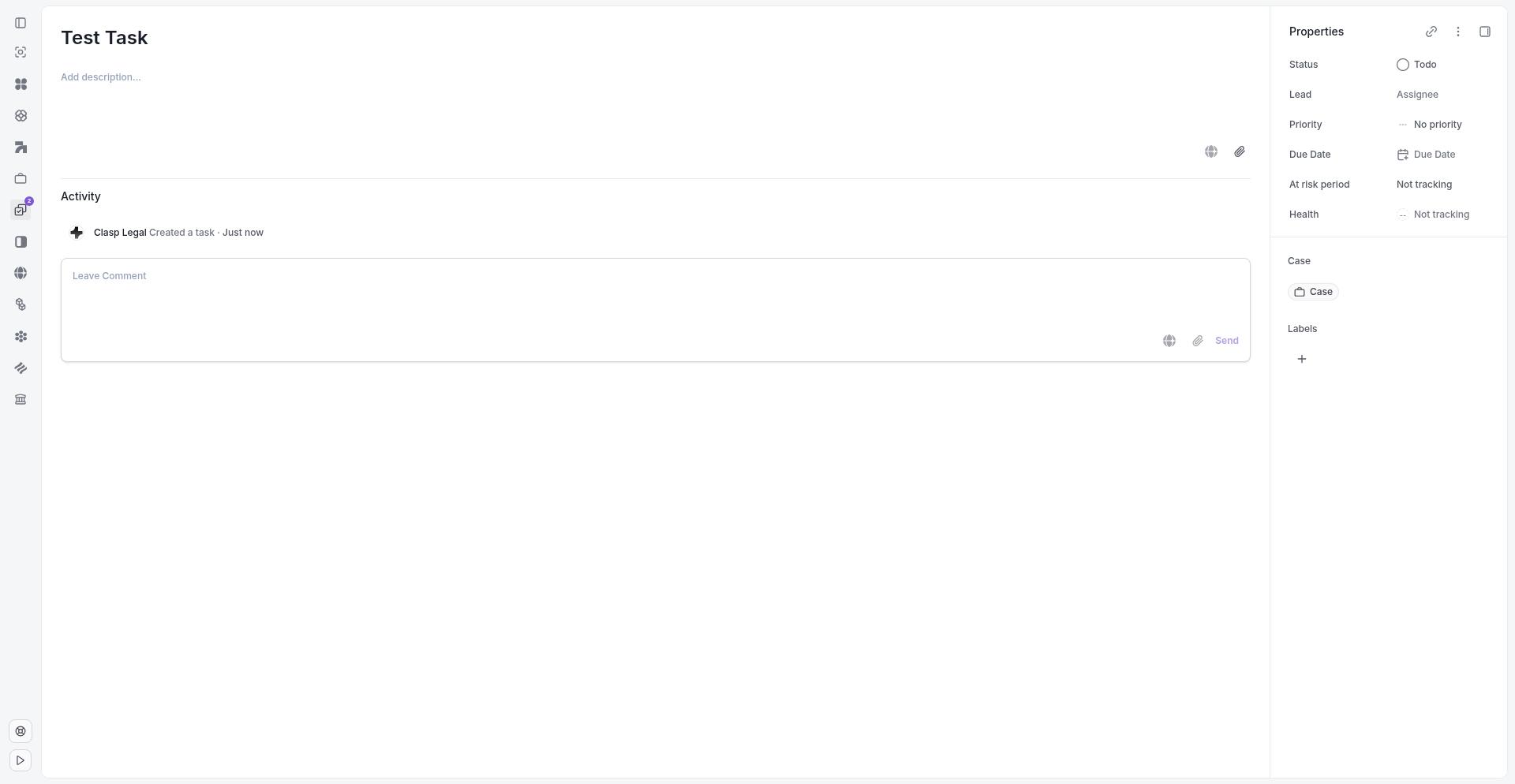
Adding a comment
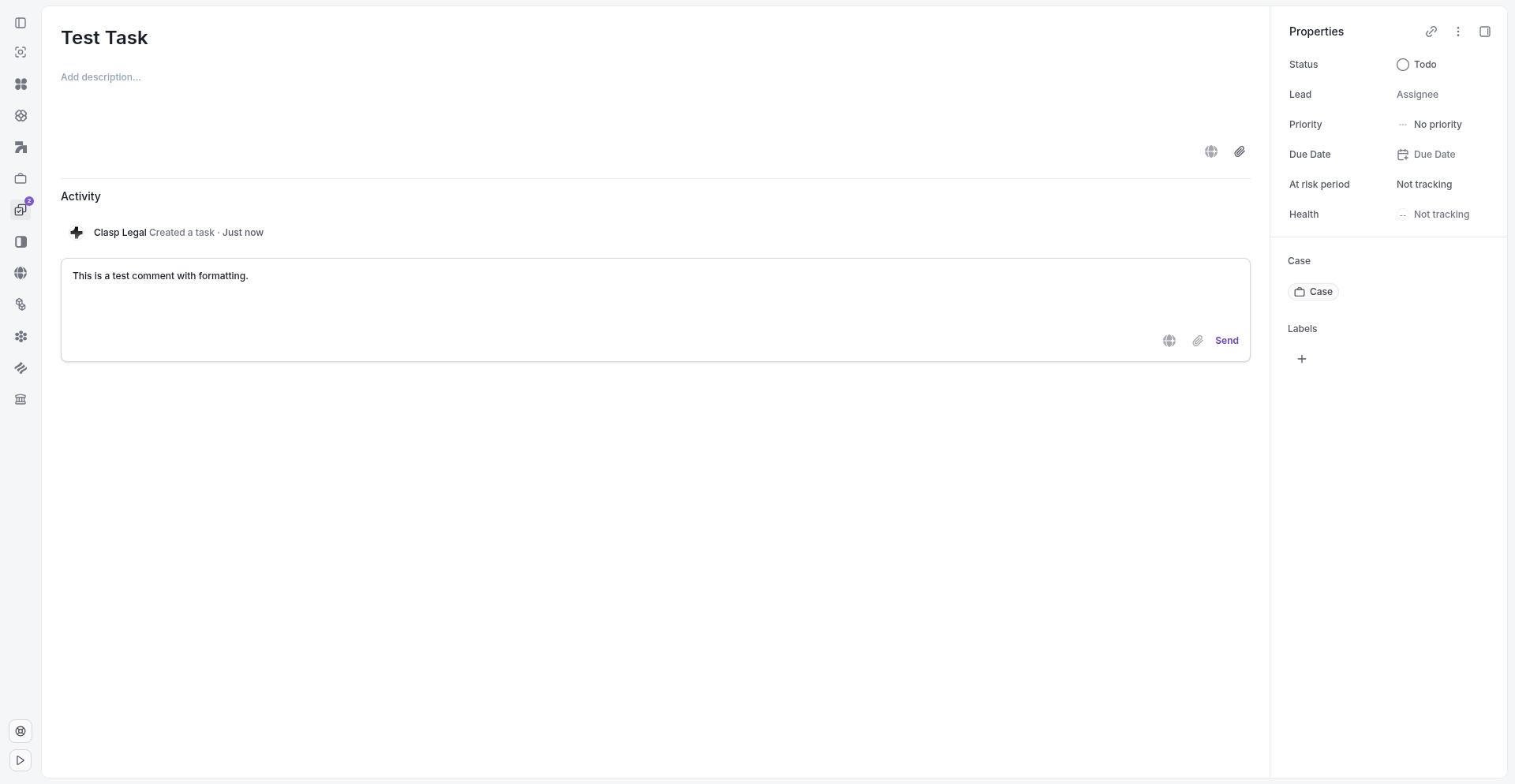
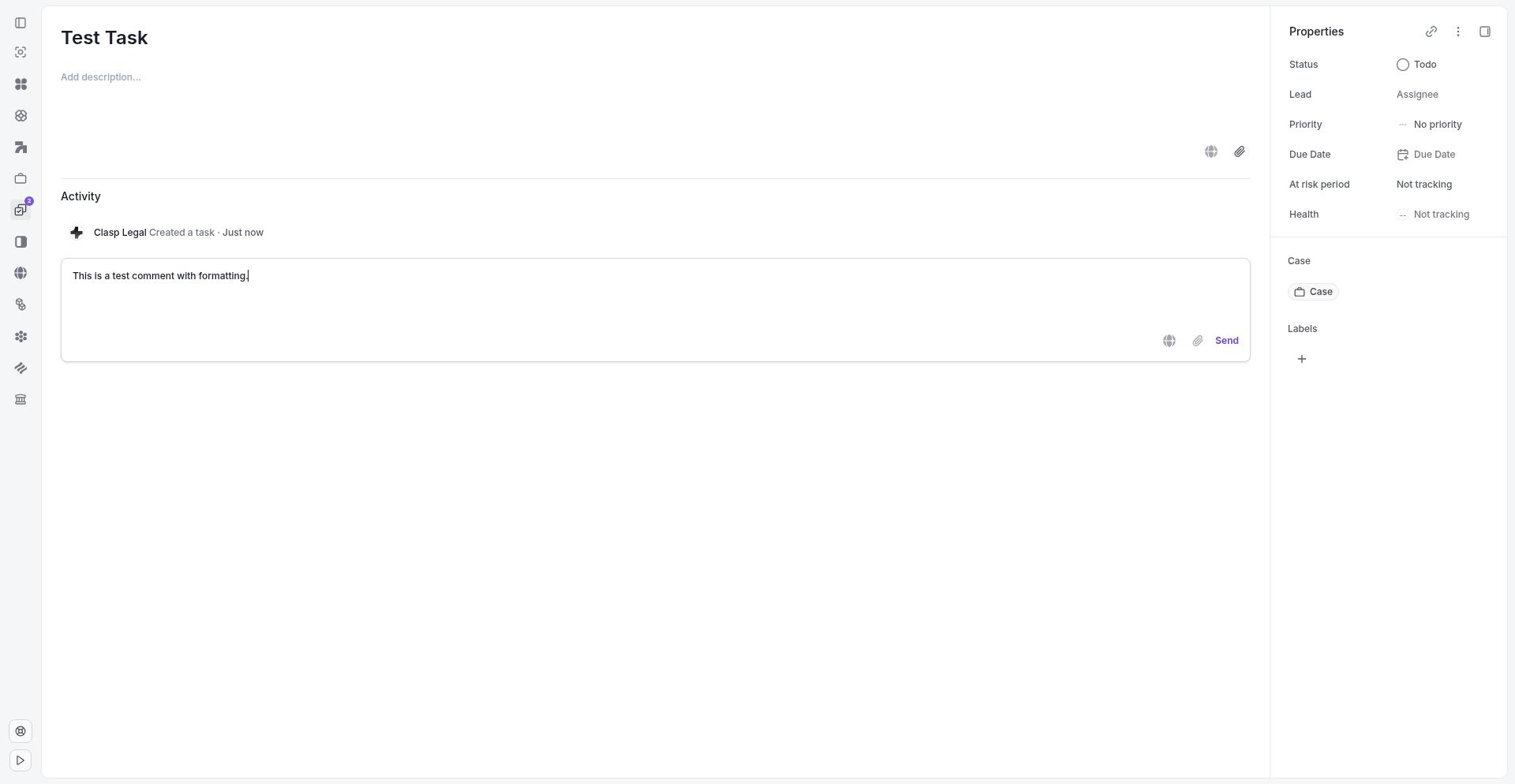
Open a task to view its detail panel. At the bottom of the task, locate the comment composer—a text field where you can type your message. Enter your comment and press Send to post it. The comment appears immediately in the task's activity feed, visible to everyone with access to the task.
Comments support rich text formatting, including bold, italic, and bulleted lists.
@mentioning a team member
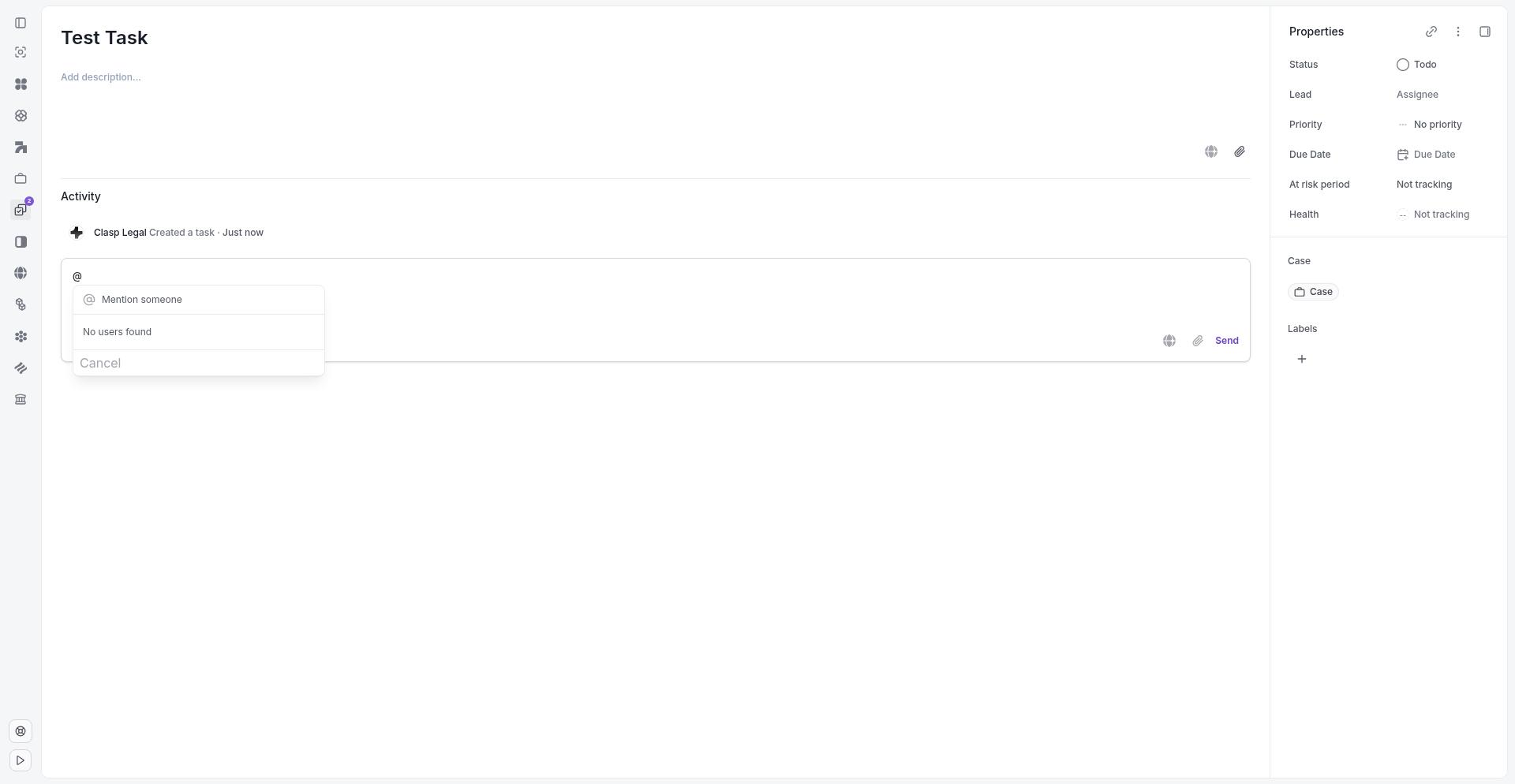
Type @ in the comment composer to open the mention picker. A list of team members appears—start typing a name to filter the list, then select the person you want to mention. Their name highlights in the comment with an @ symbol prefix.
When you post the comment, the mentioned team member receives a notification alerting them to the comment. See Notification Preferences to manage how you receive mention notifications.
[Confirm: does the mention picker show all team members or only those with access to the case/matter?]
Reacting to comments
Hover over any comment to reveal the reaction button. Click the emoji icon to open the reaction picker and select an emoji to attach to the comment. Reactions appear below the comment text and are visible to all task participants.
You can add multiple reactions to a single comment. To remove a reaction, click the same emoji again to toggle it off.
Task activity feed
The activity feed on a task shows a chronological history of all activity: comments, @mentions, reactions, status changes, assignments, and other task updates. Newer items appear at the top or bottom depending on the sort order.
Comments are interspersed with other activity events, making it easy to see discussions in context alongside task changes. Click any comment to scroll to it within the feed.
Can I edit or delete a comment after posting?
Who can see my comments?
Anyone with access to the task can view all comments on that task. Tasks inherit permissions from their associated matter or case workspace.
Do @mentions notify people who aren't assigned to the task?
Yes. Anyone you @mention receives a notification, regardless of whether they are assigned to the task. They need access to the task's matter or case to view the comment.
Was this helpful?