Send a Document for Signature
You can send any document for e-signature directly from Clasp. Once sent, signers receive an email with a link to review and sign the document.
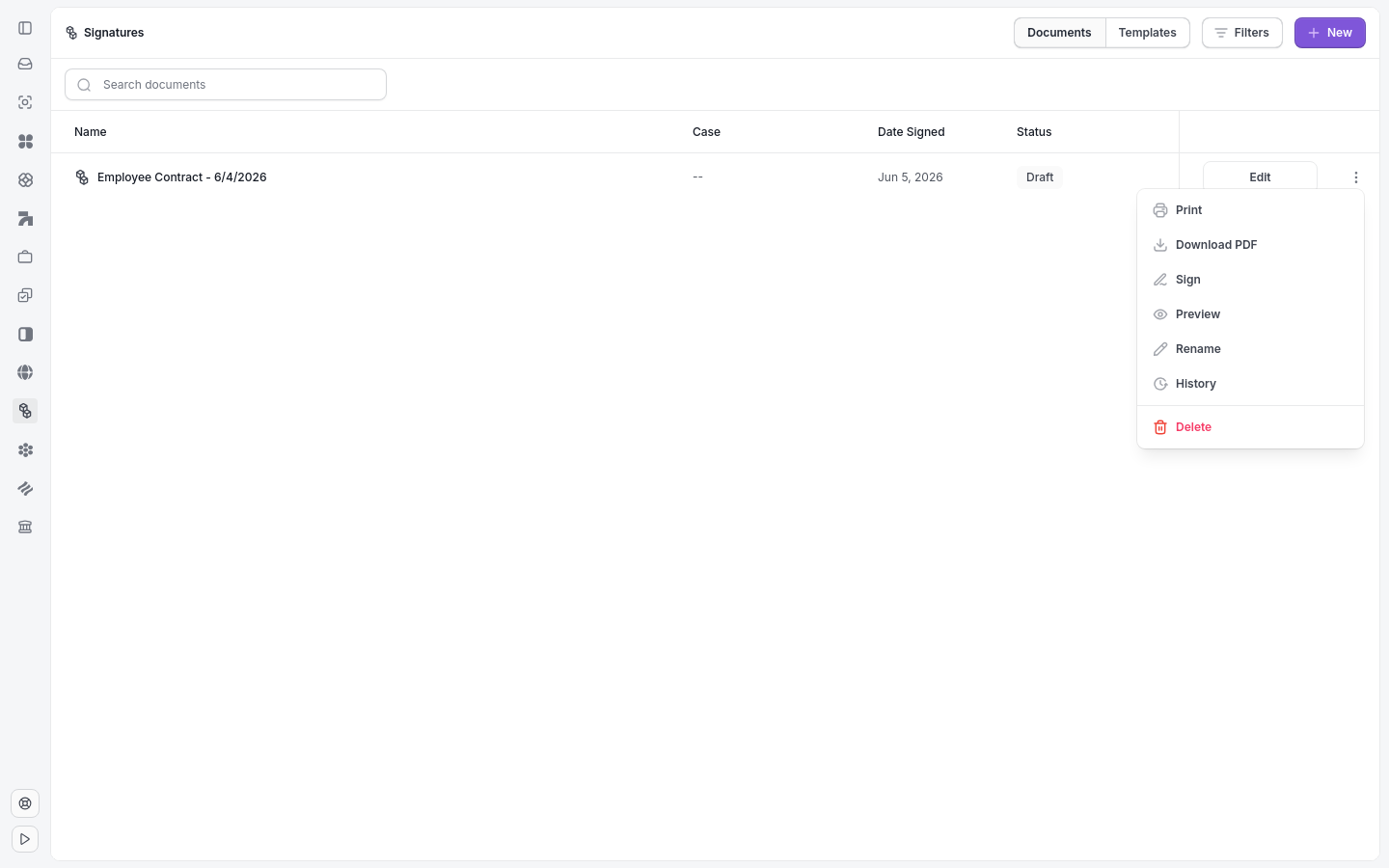
The Signatures page lists your documents and the entry point to send one.
To send a document for signature:
- Click Signatures in the sidebar.
- Click + New.
- Select the document you want to send, or upload a new file.
- Add one or more signers by entering their name and email address.
- Place signature fields on the document by dragging them to the correct location.
- Click Send to deliver the signature request to all signers.
Note: Signers do not need a Clasp account to sign a document. They receive a link via email.
Tip: To reuse the same document layout with signature fields pre-placed, create a signature template instead.
Note: You can track the status of a sent document from the Signatures list view.
Related articles: Create a Signature Template · Add Signers and Signature Fields · Track Signature Status
Updated November 3, 2026
Was this helpful?