

Create a Calendar Event
You can create a calendar event from the global '+' button, in the calendar module or directly from within a case to keep it linked to the matter.
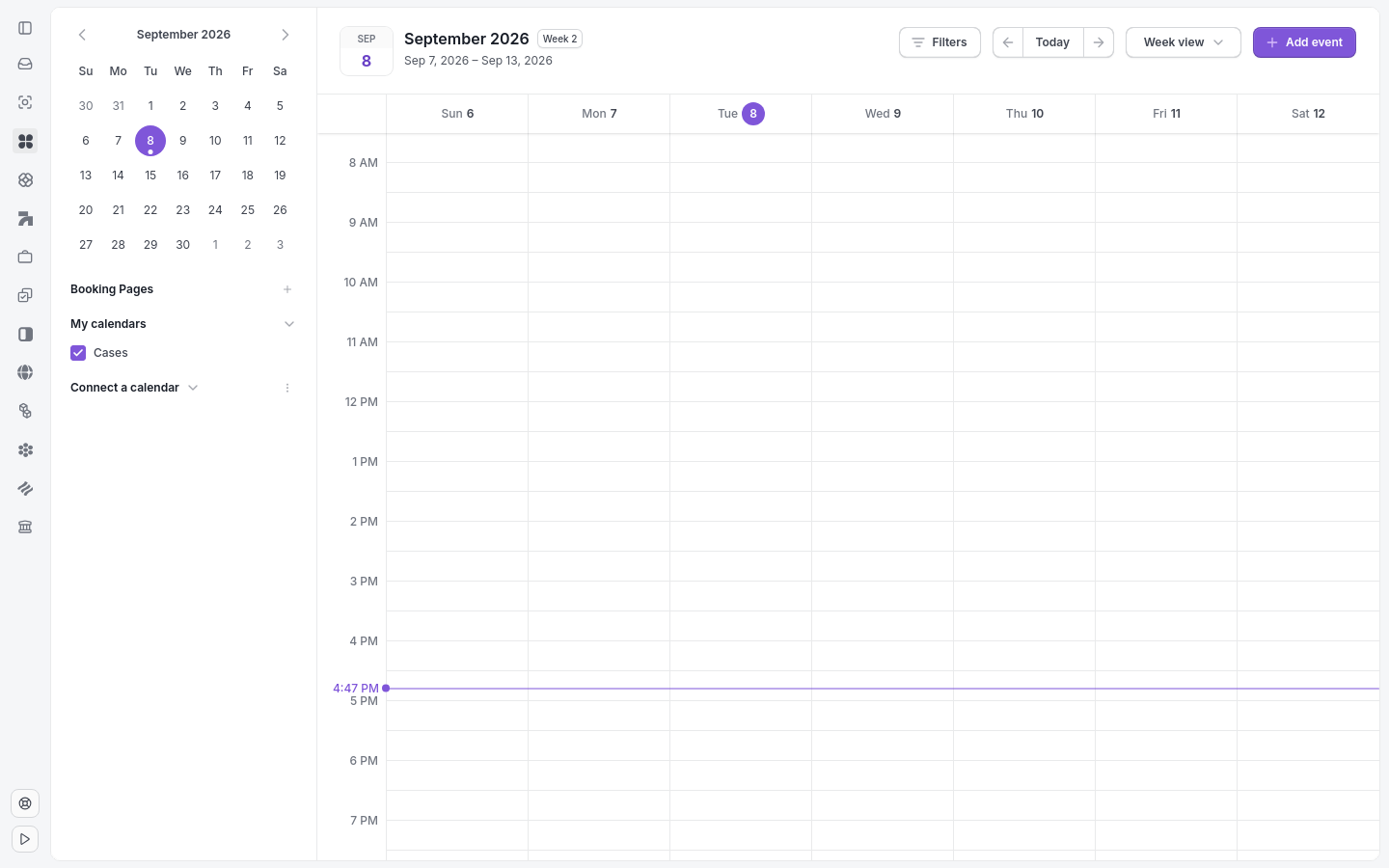
The Calendar shows your events in a month or week grid.
Create an event from the global calendar
Click Calendar in the sidebar.
Click + Add event in the top right.
Enter the event details, including Title, Date, Time, Case and any other relevant fields.
Click Save.
Create an event from within a case
Open the case.
Click the Calendar tab.
Click + Add event.
Fill in the event details.
Click Save.
Tip: Events created from within a case are automatically linked to that case and appear in both the case calendar and your global calendar view.
Event fields
When creating an event, you can fill in the following fields:
Title — Required. The name of the event.
Date and Time — When the event starts and ends.
Description — Additional details about the event.
Guests — Invite team members to the event.
Location — A physical address or virtual meeting link.
Case — The case the event is linked to (auto-populated when created from within a case).
Note: You can also create events using the + Create button in the top-left corner and selecting Event