

Process a Disbursement
A disbursement is a payment made from a trust or operating account on behalf of a client or for a case-related expense. Use the Disbursements tab in Banking to record and track these outgoing payments. Linking each disbursement to a case keeps all case-related expenses in one place for complete visibility.
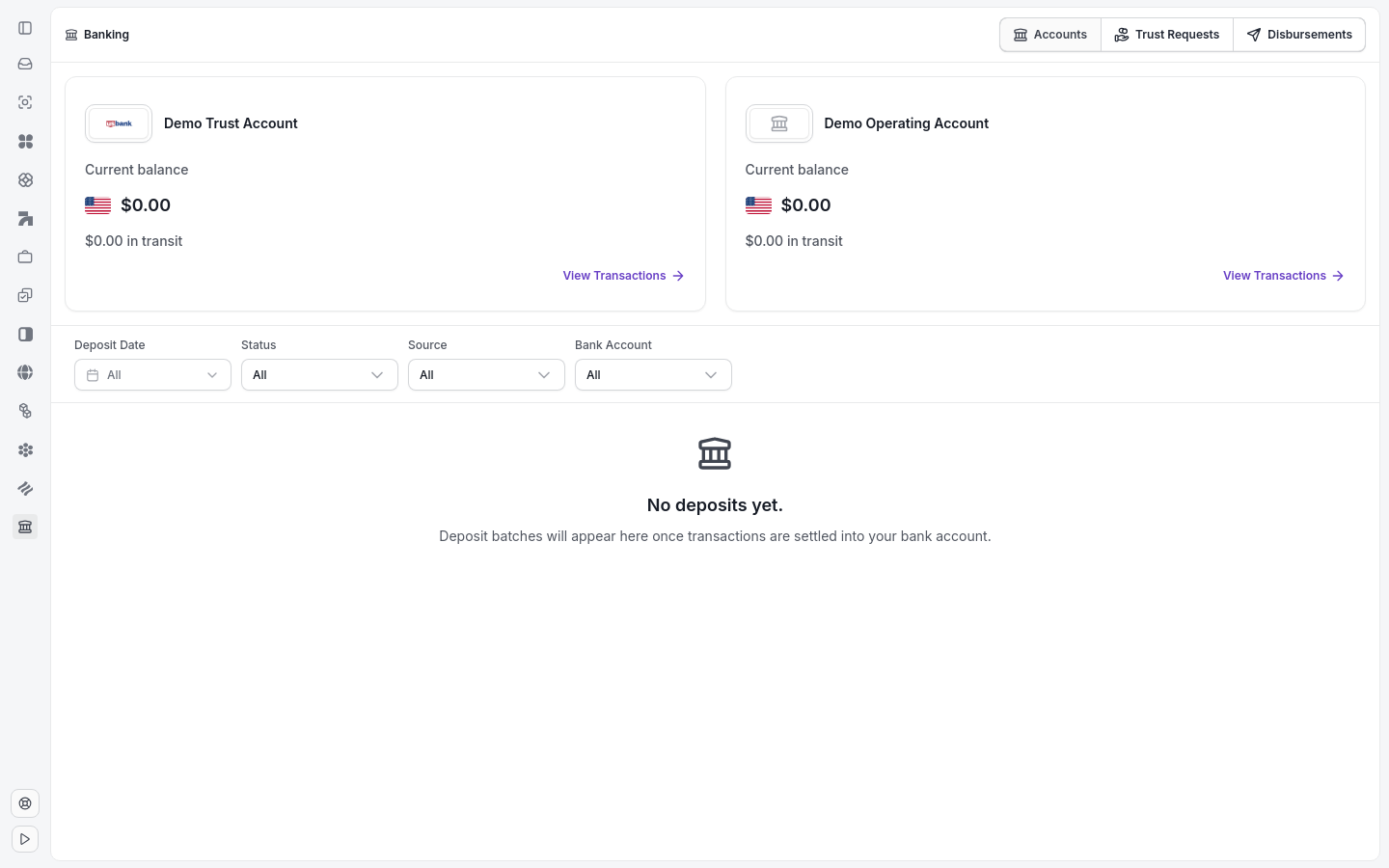
The Banking page shows your accounts and the Disbursements tab.
Note: Sending or approving a disbursement requires an active paid subscription, an approved billing application, and enabled billing. If billing is disabled, creating a disbursement shows the Premium feature message with Enable billing in workspace settings to create disbursements. and a Go to Plans link. Before the billing application is approved, Banking shows Demo Trust Account and Demo Operating Account — display-only placeholders with no real transaction activity, not connected bank accounts.
Go to Banking in the sidebar.
Click the Disbursements tab.
Click New Disbursement.
Select the funding account: Trust or Operating.
Enter the Contact, Amount, and linked Case for the expense.
Add an Authorized Email. The authorized email is the email that is authorized to accept this disbursement. Sending money to a client can be risky and we want to ensure the correct person is collecting it.
Click Create Draft
The draft disbursement is now a line item. Click the Approve and Send button.
Once sent, the client will recieve an email. If you change your mind, and want to cancel the disbursement before it is collected, you can click the 3 dot menu and VOID the disbursement - thereby cancelling the disbursement link.
Note: Disbursements from a trust account reduce the client's trust balance. Confirm sufficient funds exist before you process the payment.
Tip: After saving, the disbursement appears in both the Disbursements tab and the associated case's Billing tab for full visibility.
Related: Trust and Operating Accounts · View Transactions