

Create a Task
Use tasks to track work that needs to get done — whether it's case-related or general firm work. You can create tasks from multiple places in the app, so the right workflow is always within reach.
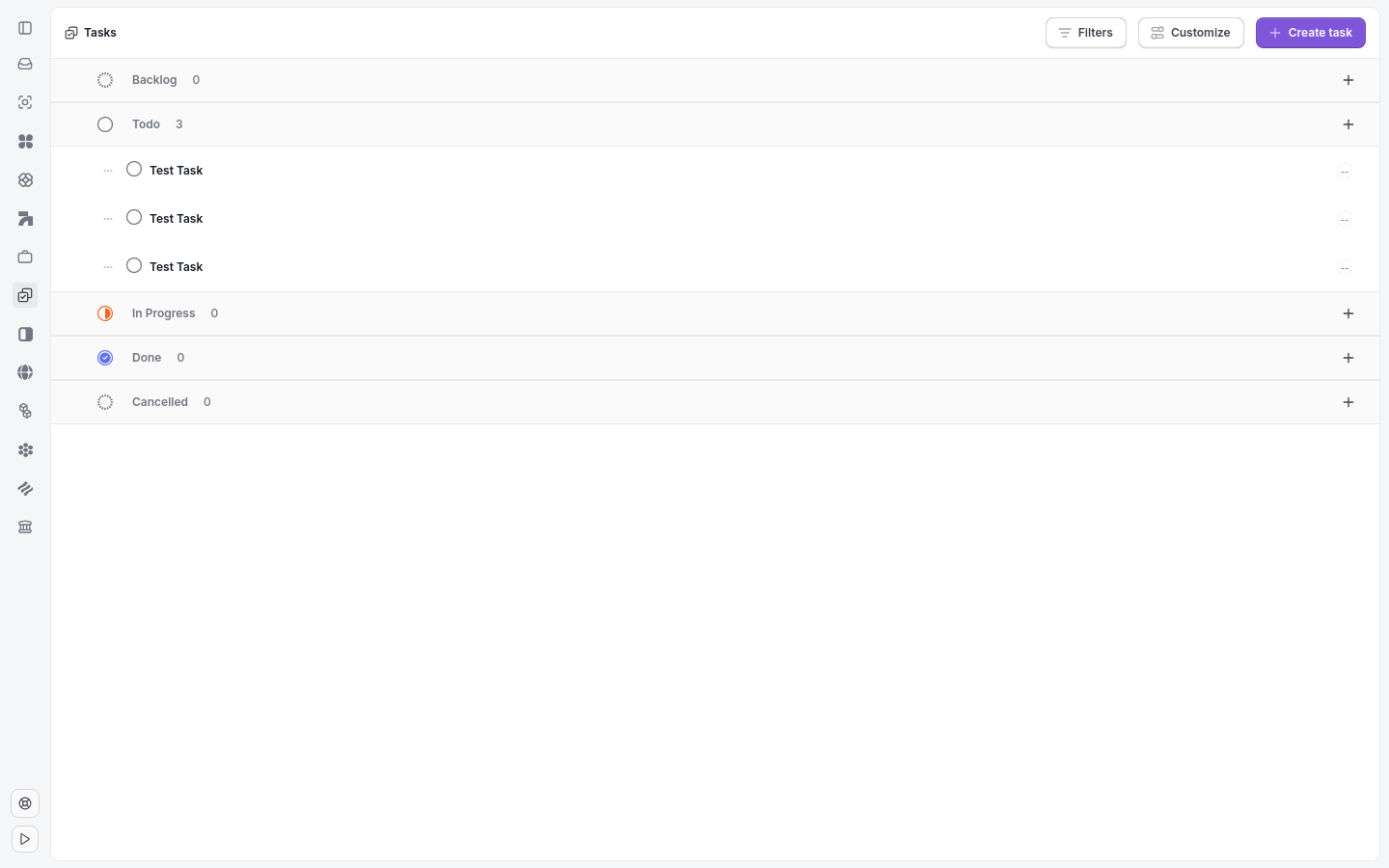
The Tasks page shows all firm tasks and the entry point to create one.
Create a task from the + Create button
The quickest way to create a task is from the global + Create button.
Click the purple + Create button in the top-left corner.
Select Task from the dropdown.
Enter a Title for the task.
Optional: Fill in the Description, assign an Assignee, set a Due Date, and choose a Status.
Tag the task to a case
Click Create task.
Create a task from within a case
When a task belongs to a specific case, create it from inside the case to keep all work in one place.
Open the case.
Click the Tasks tab.
Click + Create task.
Fill in the task details.
Click Save.
Tip: Tasks created from within a case are automatically linked to that case, so they appear in both the case view and the global Tasks list.
Task fields
When you create a task, you can fill in or select the following fields:
Title — Required. A short, clear name for the task.
Description — Optional details or instructions about what needs to be done.
Assignee — The firm user responsible for completing the task.
Due Date — The deadline for completing the task.
Status — The task stage, drawn from the custom statuses your firm has configured.
Labels — Optional tags for organizing and filtering your tasks.
Related: Assign a Task · Set a Task Due Date · Custom Task Statuses · My Tasks