

Send a Document for Signature
You can send any document for e-signature directly from Clasp. Once sent, signers receive an email with a link to review and sign the document.
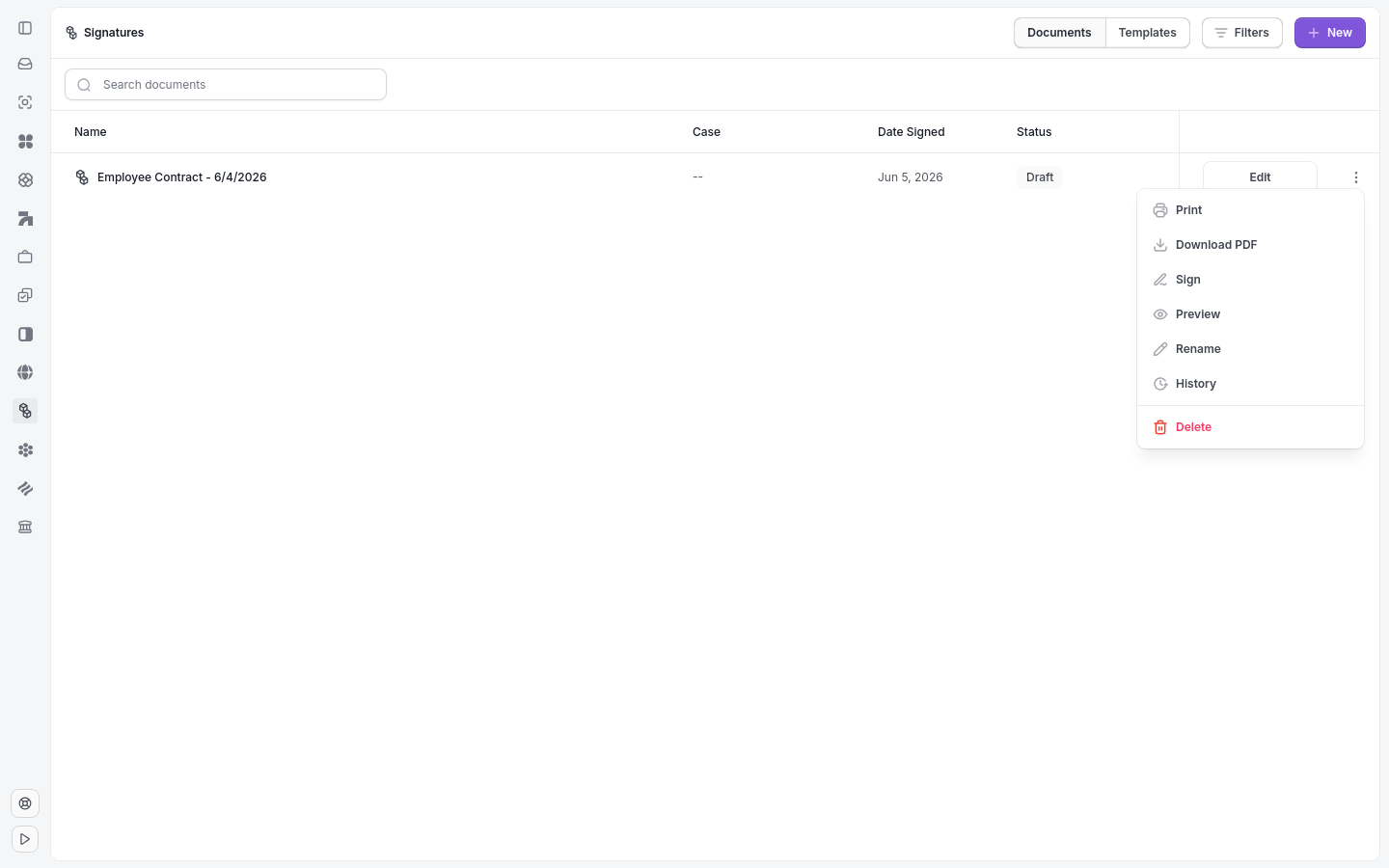
The Signatures page lists your documents and the entry point to send one.
To send a document for signature:
Click Signatures in the sidebar.
Click + New.
Select the document you want to send, or upload a new file.
Add one or more signers by entering their name and email address.
Place signature fields on the document by dragging them to the correct location.
Click Send to deliver the signature request to all signers.
Note: Signers do not need a Clasp account to sign a document. They receive a link via email.
Tip: To reuse the same document layout with signature fields pre-placed, create a signature template instead.
Note: You can track the status of a sent document from the Signatures list view.
Related articles: Create a Signature Template · Add Signers and Signature Fields · Track Signature Status